Remote Signage Management: What to Check Before Sending a Technician
An online player does not prove the screen is showing the right picture. Check four layers and prepare an evidence-based technician ticket.
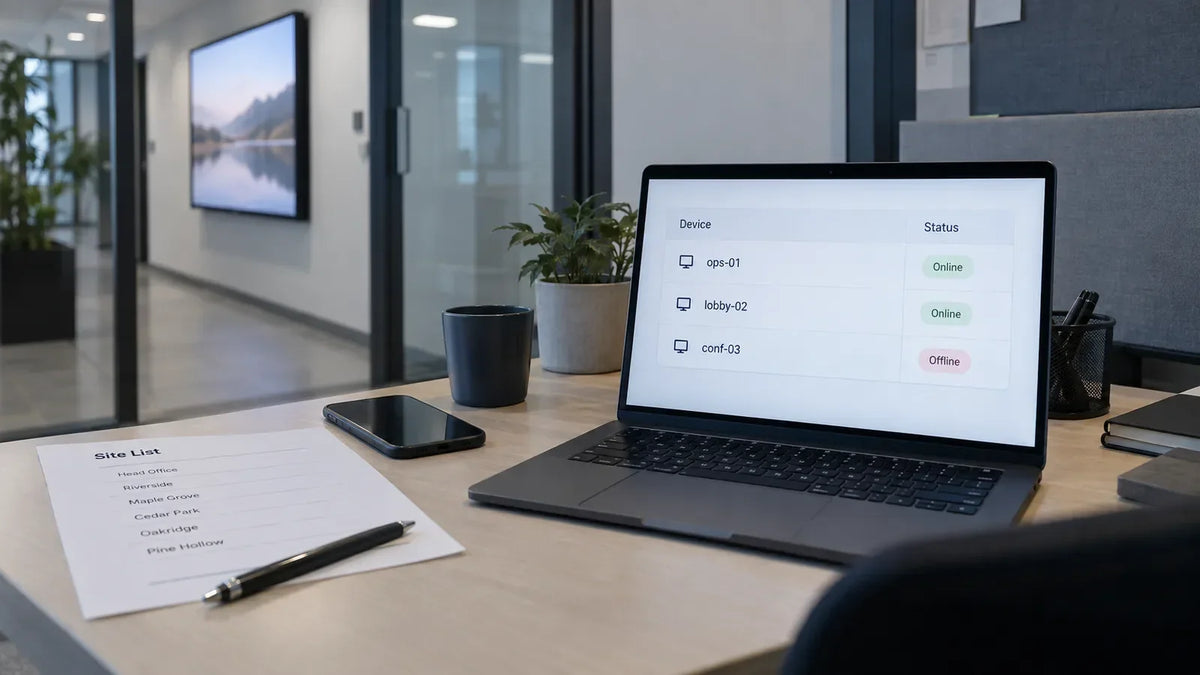
A store reports a black screen. Your signage dashboard says the player is online. Before booking a site visit, separate four questions: can the system reach the player, is the player running the right content, is it sending the expected output, and is the physical display showing that output? A green status indicator cannot answer all four.
This is where remote signage management becomes useful to an integrator: collecting enough evidence to choose the next action. Rebooting everything may restore the picture, but it can also remove the information you needed to understand the fault.
What does “online” actually tell you?
Start with the meaning of the status in your chosen CMS. Is it the last successful heartbeat, a recent connection, or a current playback report? Check its timestamp and time zone. A status left over from before the store opened is different from a live connection.
The reverse matters too. ScreenCloud's troubleshooting documentation explains that an offline indicator can accompany continued playback of cached content. The dashboard and the picture describe different parts of the system.
Use a remote snapshot if your platform supports it, but establish where it comes from. A player capture may show the rendered content without proving that the display has power, the correct input, or a visible image. A photograph from the store answers a different question. Label both with the device or placement ID and capture time.

Which layer should you check first?
Ask the person on site for a photograph of the whole screen, including any visible message. “Black” could mean no power, an active black slide, the wrong input, or a playback problem. Then work through this small evidence table.
| Observation | Useful next check | Who to ask in this project |
|---|---|---|
| Player cannot be reached | Last contact, network status and whether other devices at the site are affected | CMS support and site IT |
| Player is reachable, content is wrong | Assigned playlist, schedule, content version and local time | Content operator |
| Player capture is correct, screen is blank | Display power/input state and output connection | Site contact or technician |
| Picture returns after restart | Logs and state before/after restart, if available | Support operator |
Assign named contacts to these roles before rollout. These checks guide an investigation; they do not diagnose every installation. Agree on safe local checks with the client. Store staff should not open a housing, climb to a mount, or improvise electrical work to supply a photograph.
For a reachable player, compare the assigned content with the planned content. Look for an expired schedule, incorrect screen group, or time-zone mismatch before changing hardware. If the player is producing a picture but the display is not showing it, check the selected input and connection using the model's documented controls.
When is a remote restart the right action?
A restart is appropriate when the authorized support procedure calls for it and the team knows what should happen afterward. Capture the available evidence first: last contact, playback state, recent changes, logs, and the current picture. Record the action and its result.
BrightSign's Diagnostic Web Server documentation shows how a particular player platform exposes diagnostics and controls. Available commands, permissions and recovery behavior depend on the platform and setup. Do not assume every screen in a mixed network supports the same remote action.
Set a stopping point. If the same symptom returns, repeated restarts without a new hypothesis are a poor substitute for investigation. Escalate with the evidence already collected and name which component needs inspection. The CMS compatibility guide helps connect this operating behavior with the setup tested before deployment.

What belongs in the technician's ticket?
Give the technician a specific task, not “signage broken.” Include:
- site and placement ID, display model, player model and needed software versions;
- the expected picture and the actual picture, both with timestamps;
- first observed failure and whether it is continuous or intermittent;
- recent content, network, power or software changes;
- checks already completed and their results;
- access arrangements, service space and the approved replacement plan.
Keep credentials out of ordinary tickets. Share access through the client's approved process. A useful ticket should let the technician prepare the correct parts and understand what can be inspected without disrupting the site.
Build the service path into the purchase
Remote tools only help when someone owns the alert and has authority to act. Before a rollout, agree who checks the dashboard, who contacts the store, who authorizes a restart and who sends a technician. Test one fault and its handoff during the pilot. The sample evaluation checklist provides a place to record the chosen setup and results.
Display selection should include physical access as well as software access. For a wall-mounted installation, ask how a technician reaches the connections. For a floor-standing position, confirm the service route and placement conditions. Management and control capabilities must be confirmed for the actual hardware and player combination.
If you are planning a new network, send Gemdragon the placement drawings, player/CMS arrangement and recovery requirements. We can discuss the display setup and the model-specific information needed for evaluation.