Two Touch Screens on One PC: Test Concurrent Visitors

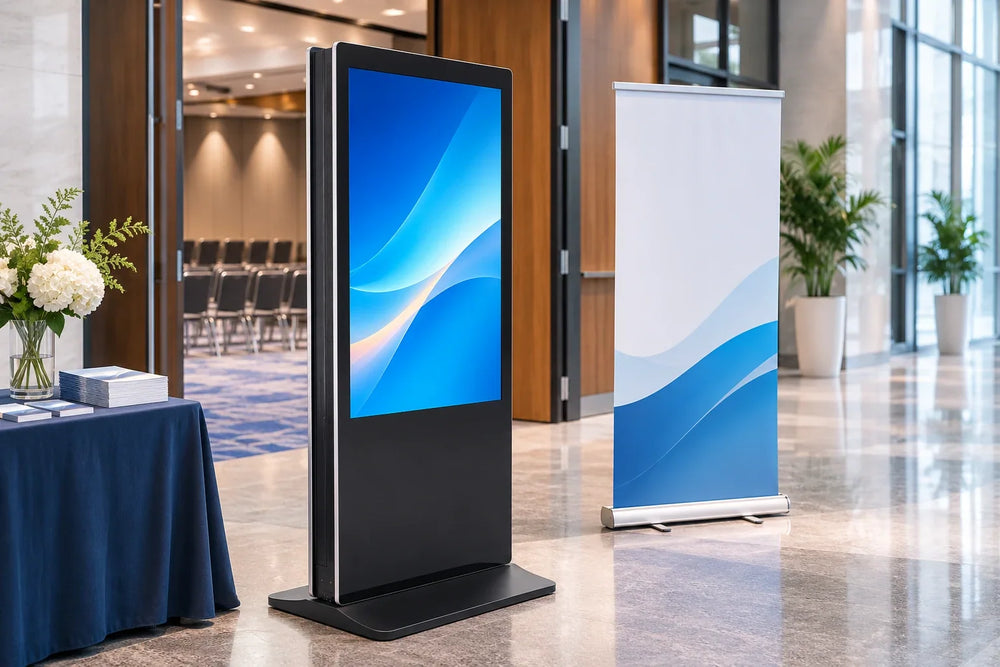
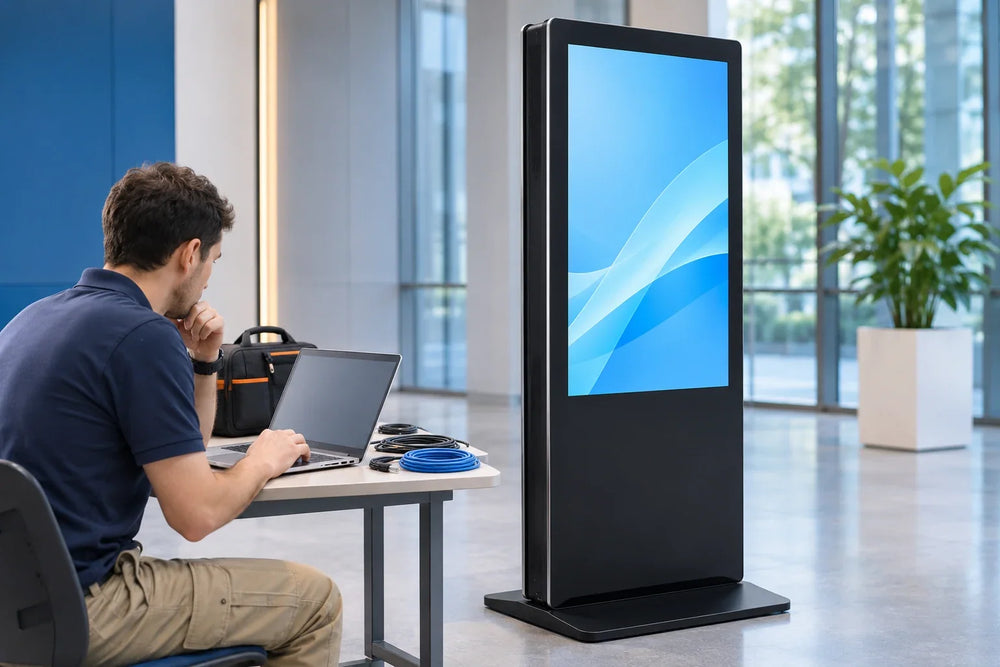
Illustration of a two-viewer placement. Optional touch and concurrent operation require configuration and testing.
Two connected touch screens do not establish two independent visitor sessions. The question a public-space project has to answer is harder: when two visitors stand on opposite sides of the same cabinet and touch at the same moment, whose application receives the input, whose text field takes the keystrokes, and what does the second visitor see of the first one's session?
Mapping is necessary and not sufficient. Test concurrency as its own acceptance item, with two people, simultaneous actions, an idle period, and a deliberate handover.
This is a test design for a proposed touch configuration. It does not claim that any Gemdragon display includes touch by default. Touch is an option on the indoor double-sided unit, and the touch technology for a project is confirmed with the selected configuration rather than assumed from the option list.
Five different claims behind "the touch works"
People approve a two-user installation on evidence that only supports something smaller. Separate the layers before writing an acceptance test.
| Layer | What it proves | What it leaves open |
|---|---|---|
| Display mapping | The intended picture and orientation reach each face | Which touch input controls that picture |
| Input routing | A contact is associated with the intended surface | Which application handles the event |
| Pointer focus | The cursor or caret is where expected | Whether two people can act at once |
| Application session | The app state advances correctly | Whether sessions stay separate |
| Reset and handover | The next visitor starts clean | What the previous visitor's data left behind |
A tap that lands accurately on both faces is a good sign and a poor proof. The usual failure is not a wrong coordinate. It is two correct touches competing for one foreground window, one caret, and one dialog box.
Check the input path the application actually uses
A panel can report several contacts while the software behind it still has a single focus. That distinction is easy to miss when the demo consists of one person swiping each screen in turn.
An Elo support article addresses a closely related question: if two touch monitors are connected to a Windows computer, can both be used at the same time? Its answer describes the ordinary Windows mouse-pointer path, where one pointer instance exists and whichever screen is touched first takes control. The article also mentions third-party applications that claim to provide additional pointer instances, and states that Elo cannot support those applications or guarantee the touchscreens will perform as expected with them.
Read that carefully. It is a vendor explaining its own support position for a common configuration. It does not establish that every Windows touch or pointer interface is limited to a single contact, and multiple simultaneous touches are not the same thing as two independent users. The practical point survives either way: contact count is a hardware capability, while separate application focus is a software design decision.

A two-person test script
This script is a proposed acceptance method, not an Elo test procedure. Agree which rows the application must support. Use dummy entries in an approved test environment, with IT-authorized interruption and restart procedures. Run it on the proposed configuration, with the application the project will actually deploy. One person takes each face, and a third person records. Before starting, confirm that face mapping is already correct and that both faces show a test page with a face ID; if mapping is wrong, fix it first, because every later result will be misleading.
| Step | Both visitors do | Pass looks like |
|---|---|---|
| 1. Baseline | Tap a target on each face in turn | Each tap acts on its own face |
| 2. Simultaneous | Drag in opposite directions at the same moment | No jump, no swap, no lost gesture |
| 3. Shared input | Both open a form and type | Text lands only in the field each visitor used |
| 4. Modal test | One visitor opens a dialog | The other visitor's face still works as specified |
| 5. Idle | A stops for the agreed timeout while B continues | The behavior matches the specified session boundary |
| 6. Handover | Replace the visitor at A while B continues | The new A visitor starts clean and B is unaffected as required |
| 7. Network loss | Disconnect the network during a task | The agreed offline behavior happens on both faces |
| 8. Restart | Restart the computer | Both faces return to a usable start state |
Steps 3 and 6 produce the findings that matter commercially. A shared text field means two visitors overwrite each other's input, and a session that leaks between faces means the person on the reverse side can see what the previous visitor entered. Neither is visible in a one-person demo, and neither is fixed by better calibration.
Record what each visitor saw, not just what the tester expected. Video from a single position cannot show both faces, so use two recordings, or one recording plus a timed note sheet. Note the application version, the operating system, the touch connection route, and the display each touch was mapped to, because a later update can change all four.


What the result tells you to build
The test rarely ends in a simple pass. It ends in a decision about which of three architectures the project actually needs.
Separate endpoints or supported isolated sessions. The integrator can propose separate hosts or a supported isolation design. Compare the added hardware and administration with the required behavior; do not assume a universal cost ranking. Shared backend state can still matter, so test the complete application rather than treating two computers as proof of isolation.
One shared session with turn-taking. One visitor at a time owns the screen, with a visible busy state and a defined reset between visitors. It suits wayfinding, product lookup, and short forms, and it fails the moment a client asks for two simultaneous transactions. Design the reset as a tested behavior, not an assumption.
A shared host with an application designed for concurrent input. The application may handle surface-specific contacts or separate application instances through a supported input design. Ask the integrator to identify that mechanism. Test gestures, dialogs, keyboard entry, state boundaries, and reset together; ordinary desktop focus behavior and native touch-event handling are not interchangeable assumptions.
If an integrator proposes additional multi-user software, require its supported configuration, licensing, maintenance owner, and test evidence. Do not install an unverified utility merely to make the demonstration appear concurrent. A third-party component needs an accountable support path like any other part of the system.
Practical questions
Can two people use opposite faces at the same time?
Sometimes, and the configuration decides. Both faces can be interactive while the application still enforces one active user at a time. Demonstrate the concurrent workflow before accepting the claim.
Is a multi-touch panel enough for two users?
No. Multi-touch describes how many contact points the panel reports. Two-user operation also needs input handling and state boundaries appropriate to the task. Whether that uses separate hosts, supported sessions, or application-specific touch handling must be established by the integrator.
What if we only need one visitor at a time?
Then say so, and test the handover: idle timeout, partial form, cleared display, and the next visitor's start state. A single-user requirement is easier to accept, but only when it is written down rather than assumed.
Where the concurrency decision lands
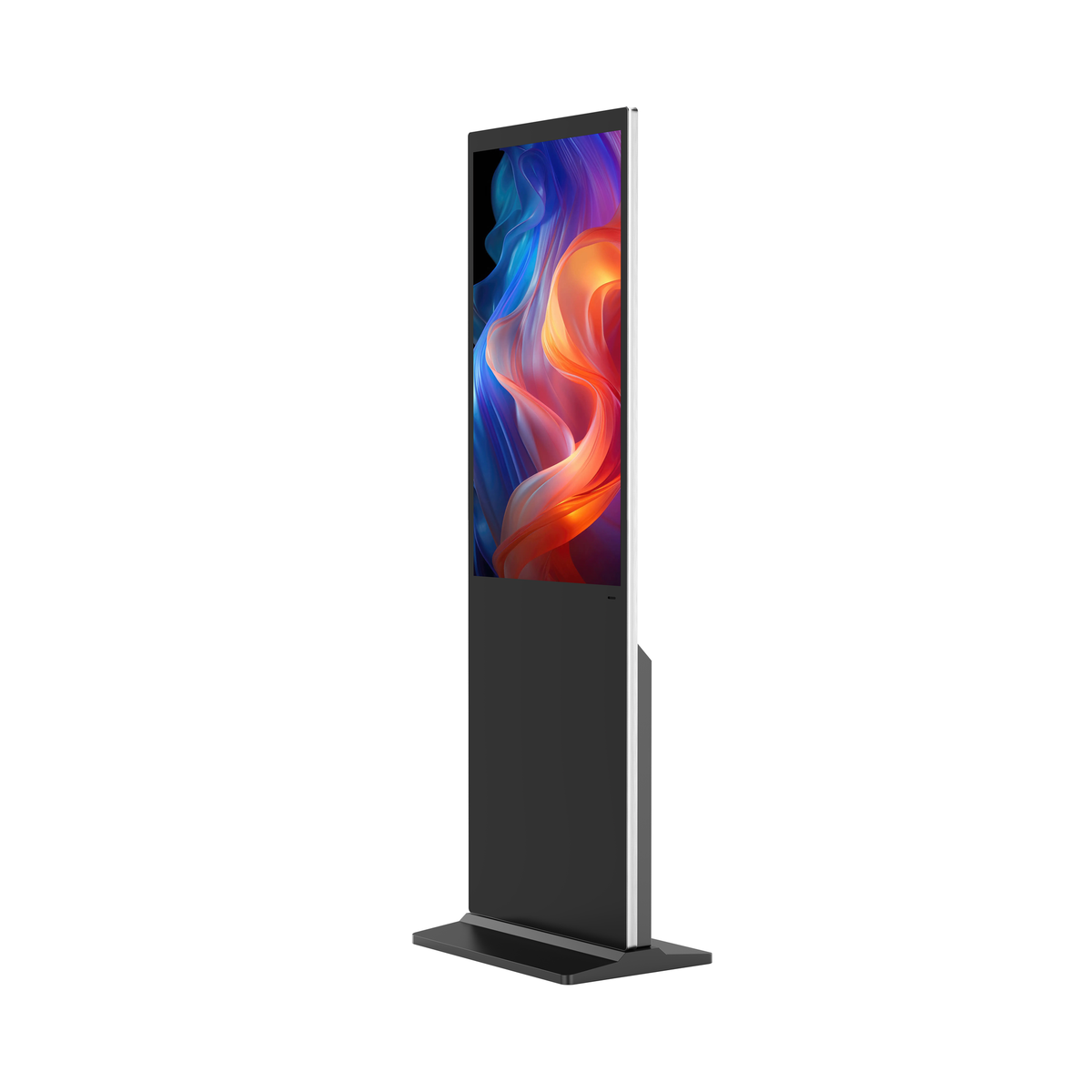
Gemdragon's Ultra-Thin Double-Sided Floor-Standing Digital Signage puts two faces on a single indoor floor-standing cabinet, in 43, 49, 50, 55, 65, or 75 inches. The option menu lists touch, but an option listing says nothing about touch technology, host count, or two-person independence; those belong to the configuration and to the software that runs on it.
Send the intended visitor task, the number of simultaneous users, the reset policy, and the host or application already chosen. Start with the double-sided buying guide for the specification, the kiosk session-reset test covers the single-user handover in detail, and the interactive touch screen kiosk guide covers the hardware planning around interactive builds.