Digital Signage Black Screen: Isolate the Display, Signal, and Player
Separate display, signal, player, and content faults with a black-screen troubleshooting table and a practical support handoff checklist.
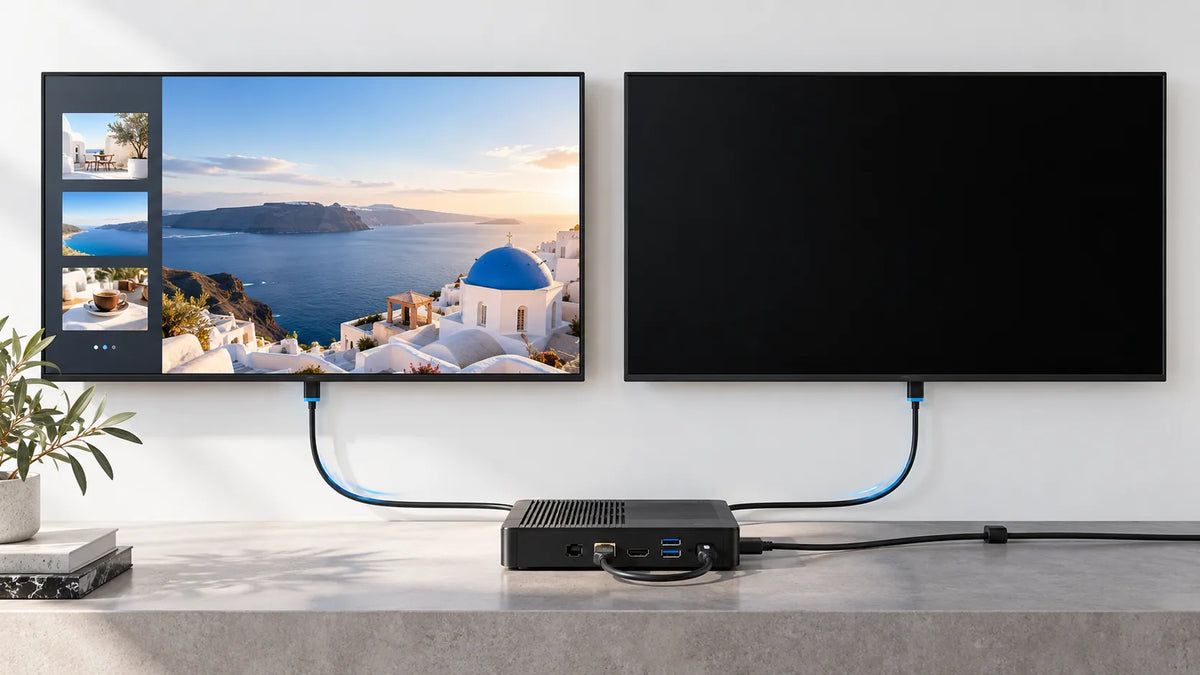
Cover illustration: a conceptual scene, not a Gemdragon model or completed customer installation.
For a digital signage black screen, identify what is still working before changing settings. Check whether the display has power, whether its own menu is visible, whether the selected input has a signal, and whether the player is producing the intended content. Record the symptom and change one variable at a time. A black picture, a “No Signal” message, and a frozen playlist are different faults and need different evidence.
Record the symptom before restarting
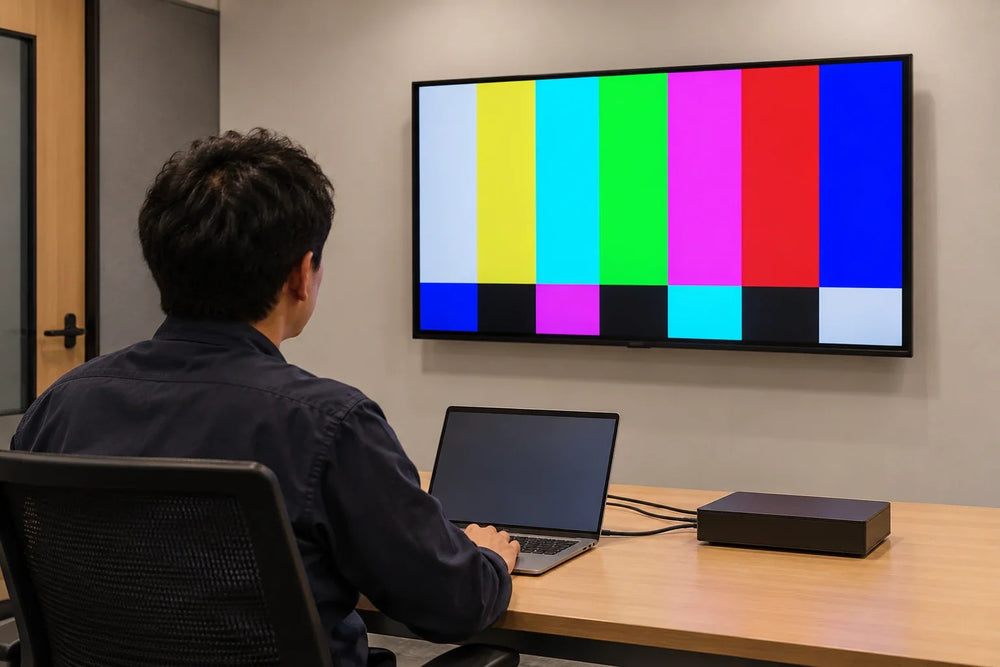
Ask the person on site for a photograph of the whole display and any visible message or indicator. Record when the problem began, whether every screen is affected, and the most recent content, cable, software, or schedule change. Note whether audio continues and whether the CMS reports the player online.
Do not interpret “online” as proof that the panel is displaying the correct picture. It may only describe a software connection. Likewise, an intentionally scheduled black slide is different from a loss of signal. Check the current assignment and operating schedule before treating the unit as failed.
If there is visible damage, smoke, an unusual smell, liquid ingress, or another unsafe condition, stop using the equipment and follow the site's isolation procedure. Internal electrical work and opening an enclosure belong to qualified personnel using the model's service instructions.

Use the display's own menu as a starting point
Try the normal user controls to display the on-screen menu. If that menu appears, record it. You have evidence that the screen can present its own interface under those conditions, but you have not proved every hardware function is healthy.
If the menu does not appear, check the approved operating procedure, power state, control lock, and scheduled sleep behavior. Do not repeatedly cycle power or perform a factory reset without understanding the installation's recovery process.
Follow the branch that matches what you see
| Observation | Next check | Record before escalation |
|---|---|---|
| No picture and no visible power indication | Approved supply and power-state checks | Indicator state, recent event, model and serial reference |
| Display menu works; input reports no signal | Selected input, player output, installed connection | Input name, message, source state |
| Menu works; input is black without an error | Known test content and player/application state | Current assignment, screenshot, time and schedule |
| Picture appears and disappears | Connection path, supported output mode, recent changes | Timing, cable path, reproducible conditions |
| One screen fails while others work | Compare the failed path with a known working path | Exact difference in source, cable, input, or settings |
| Player is offline in the CMS | Network and application diagnosis | Last contact, local playback, network ownership |
This is a troubleshooting sequence, not a remote diagnosis of a particular unit. The remote management guide covers the wider decision about whether a technician visit is needed.

Test the signal path without changing everything
Confirm that the input selected on the display matches the connection in use. Check whether the source is awake and configured for an output the display accepts. Where safe and permitted, test with a known working source and connection, following the device instructions.
Samsung's error-message guidance separates “No Signal” from network and application messages. Use its category distinction as context; the correct procedure for another display remains the procedure for that model.
An installed path may include an adapter, extender, switch, or wall plate. Record those parts. A successful direct test can help narrow the fault to the installed path, but it does not identify which intermediate part failed. Restore the documented arrangement after each controlled test.
Do not publish a universal cable-length or output-mode rule from this guide. Use the connection manufacturer's and display manufacturer's specifications for the actual components. The resolution selection checklist helps identify what must be recorded in that path.
Separate playback problems from display problems
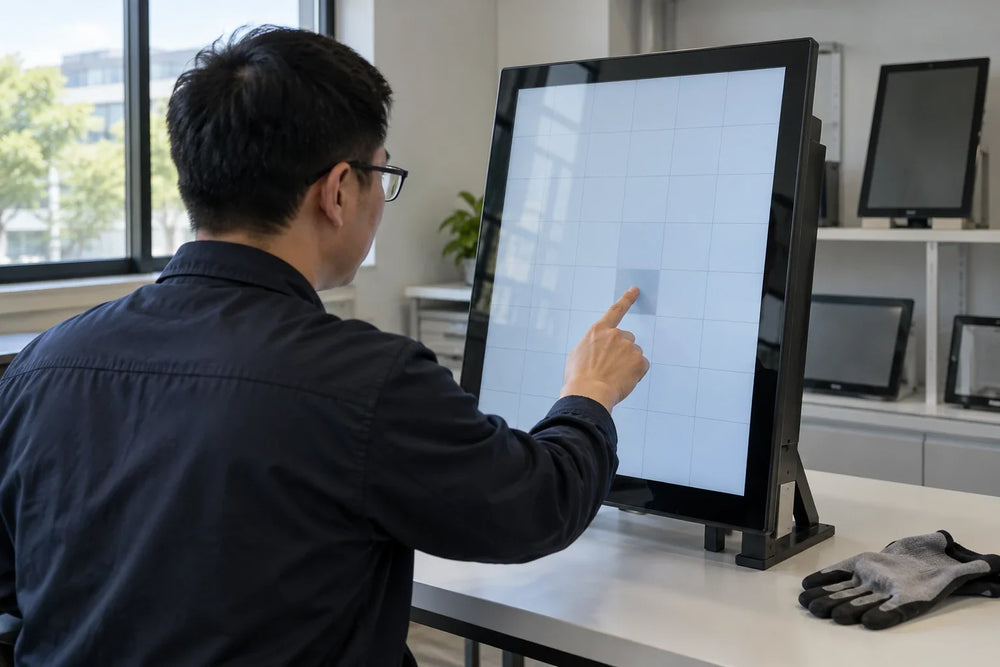
If the display can show a known image but the assigned program is black, check the application and content. Confirm that a valid playlist is assigned to the correct device, the current time is correct, and the content has not expired. Test a simple approved local asset through the intended playback application.
Then inspect more demanding content separately. A browser page may require access that a local video does not. A file may be present but unsuitable for the selected player. Record the application version and file properties with the failure.
Where the network is unavailable, use the accepted fallback procedure. Do not assume a cloud application caches every content type. See the offline playback test script for the distinction between downloaded content, live pages, and restart recovery.

Send a useful fault handoff
Copy this list into the service ticket:
- Display model and the approved serial-number reference.
- Player or controller, operating system, firmware, and application version.
- Exact symptom, visible message, and first observed time with time zone.
- Whether the display menu, audio, local test content, and CMS connection work.
- Input selected and the complete connection path.
- The last known working state and recent changes.
- Each test, what changed, what happened, and whether settings were restored.
- Site contact, permitted access window, and installation/service constraints.
Keep passwords and confidential customer material out of ordinary ticket screenshots. Use the support channel's approved method if protected information is needed.
Frequently asked questions
Should the first step be a factory reset?
Usually start by retaining evidence and following the documented diagnostic sequence. A reset can remove settings needed to reproduce the issue or reconnect the unit. Agree on backup and recovery before resetting.
Does a black screen mean the LCD panel must be replaced?
The symptom alone does not establish that conclusion. Narrow the fault across power state, display interface, signal, player, and content before a qualified service diagnosis.
The player is online. Why can the screen still be black?
An online status may describe only the player's connection. Check the panel's power state, selected input, signal path, application, and content schedule separately.
What does a visible on-screen menu tell me?
It shows that the display can render its own interface in that state. It does not prove that the external signal or playback application is working. Record the menu and continue with the relevant signal checks.
What information helps support investigate a black screen?
Provide the display and player models, symptom and start time, a whole-screen photo, selected input, software versions, and the tests already completed. Keep passwords and confidential material out of ordinary screenshots.
Get help with the identified configuration
For a Gemdragon installation, send the fault handoff and the tests already completed through Support or the contact page. For a new rollout, use this record to specify monitoring and recovery requirements before buying another unit.
Request model-specific support
This guide covers observation and fault isolation. It is not an internal repair manual. Other deployment references are available in Resources.
Related: Digital Signage Maintenance Checklist for Operators