Digital Signage Offline Playback: A Test Script Before Rollout
Test cached media, offline restart, schedule expiry and recovery on the actual player and CMS. Copy the result sheet into your signage pilot record.
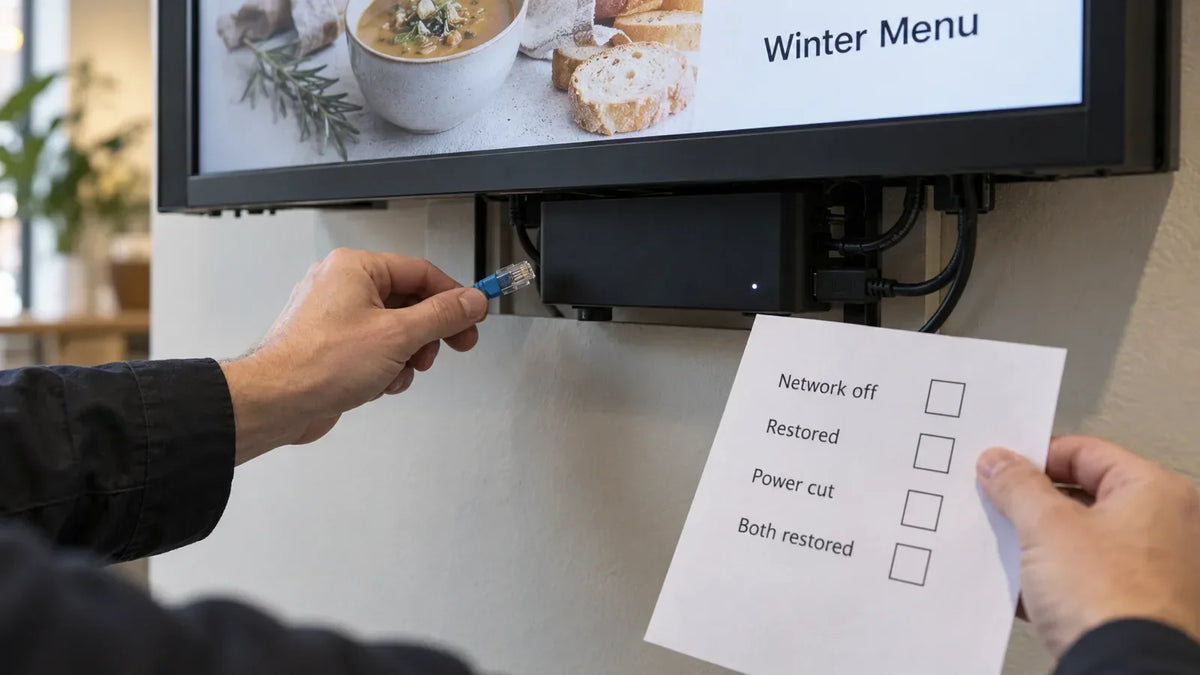
A display that keeps playing when its network cable is disconnected has passed one test. It has not yet shown what happens after a restart, when a scheduled item expires, or when a live feed stops refreshing. To evaluate digital signage offline playback, test those events separately on the actual player, CMS, display and content setup you intend to buy.
The goal is a record of what the screen does during an outage and recovery. “Supports offline playback” is too broad to serve as an acceptance result on its own.
Prepare a test playlist that resembles the real job
Include the content types your project uses: a local image, a downloaded video, a scheduled item, a web page and a live data item if applicable. Label each sample clearly. Use fictional prices, events or notices so the test cannot mislead visitors.
Record the player model, OS and CMS versions, display connection, playlist version and time-zone settings. Allow the content to load through the normal publishing process. Check what “download complete” means in the chosen platform rather than assuming that seeing a preview proves the player has a local copy.
ScreenCloud's offline documentation says most supported media can play from cache after it has played online, while some streaming and live items cannot. It also documents restart limitations on some device setups. These are ScreenCloud-specific details, and they illustrate why content type and restart behavior belong in the test.

Run four outage events separately
Use a pilot system where the outage will not disrupt a live service. Have the responsible IT or support person carry out network and power actions through the approved procedure. Save screenshots or photographs with the placement ID and time.
- Lose the network while playback continues. Observe the whole playlist, not just the first item. Note skipped items, black frames, stale fields and visible error messages.
- Restart while the network remains unavailable. Check whether the player starts and returns to usable content. Record any login, connectivity or manual intervention it requires.
- Let a scheduled item end while offline. Use a short test window. Check the physical screen after the end time and confirm what replaces the item.
- Restore the network. Publish a clearly different test version and observe how the player recovers and receives the update. Record whether a restart or operator action is needed.
Run each event for every content type the project will publish. A locally stored video and a remotely rendered web page do not necessarily have the same dependencies.
What should the result sheet record?
Copy this structure into the pilot record. Its four result columns follow the four events above, in the same order. The blank outcomes are intentional: the setup must supply the answers.
| Content type and version | Network lost | Offline restart | Item expires offline | Network restored |
|---|---|---|---|---|
| Local image | Actual result + capture time | Actual result | Actual result | Update received? |
| Downloaded video | Actual result | Actual result | Actual result | Update received? |
| Scheduled notice | Actual result | Actual result | Removed or retained? | Correct schedule? |
| Web page | Cached, error or fallback? | Actual result | Needed behavior | Page refresh? |
| Live-data field | Current, stale or hidden? | Actual result | Fallback behavior | Current value restored? |
Attach the expected result beside the actual result when agreeing acceptance. “Image continues, outdated availability is hidden, neutral notice remains” is clearer than a single pass/fail for an entire playlist.
Our CMS compatibility guide establishes the wider setup to evaluate. This script adds the specific outage events and evidence needed for offline behavior. The live-data fallback guide covers validity rules for fields that may become stale.
Decide which information is allowed to remain
Continuing playback is not always the safest or most useful outcome. A general brand video may remain appropriate, while a current wait time or event room assignment can become wrong. Classify the content before setting an offline requirement.
For each time-sensitive field, agree how long it may remain visible, what replaces it and who is notified. If the platform cannot implement the required rule, change the content design or the selected setup. Do not hide the mismatch inside a broad claim that the system works offline.

Test the fallback's appearance as well as its activation. A tiny warning underneath a large outdated number may leave the wrong message dominant. The fallback should still help the visitor take the next step.
Make recovery part of acceptance
After connectivity returns, inspect the physical picture and the management status. They answer different questions. An online player may still be displaying an old playlist, while an offline player may continue showing its cached content.
Check the next scheduled change, not only the first successful refresh. Record the last accepted content version, any intervention and the recovery time observed during the test. That observed time is a test result for the setup; it is not a supplier service guarantee.
For a rollout, store the completed record with the setup and repeat the needed cases when player software, CMS behavior or content dependencies change. The remote triage guide is the operational companion when a deployed screen later reports a fault.
If you are evaluating an indoor display setup, send Gemdragon the planned player/CMS setup, content types and offline requirements. We can discuss the model-specific display information needed for your pilot.