USB vs Cloud Digital Signage: Choose How Updates Will Be Controlled
Compare local USB updates with cloud publishing by ownership, verification, fallback, and operating work. Includes an update acceptance test.
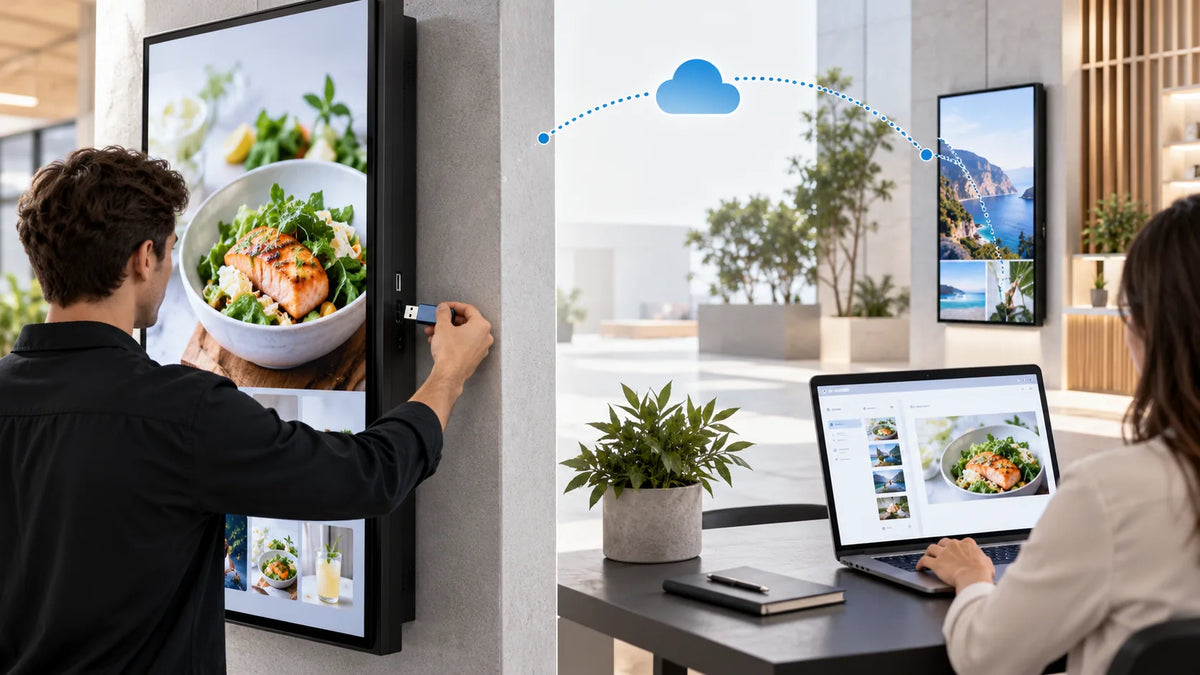
Cover illustration: a conceptual scene, not a Gemdragon model or completed customer installation.
Choose USB or cloud digital signage around who updates the screens, how often content changes, and how the result will be verified. USB can suit a controlled local workflow with infrequent updates. Cloud management can suit distributed approval, scheduling, and remote publishing. Confirm the actual player functions, software terms, network needs, and fallback behavior. Neither a USB socket nor a cloud label proves the operating workflow your project needs.
Separate the update method from playback
An update method describes how content reaches the player. Playback describes what happens after it arrives. A system may copy files from USB to internal storage, play from the inserted drive, or require a particular export package. A cloud system may download media, stream content, or combine both approaches.
Those differences affect recovery and staff instructions. Ask what can be removed after an update, what happens after a restart, and how the operator knows the current program is active. Do not infer the answer from the physical port.
Allsee's plug-and-play explanation describes its USB update approach and distinguishes it from networking. It is evidence about that manufacturer's workflow, not proof that every display or Gemdragon controller behaves the same way.

Compare the work someone will actually do
| Operating question | USB workflow to verify | Cloud workflow to verify |
|---|---|---|
| Who makes the change? | Named local operator and approved media source | Publisher, approver, and account permissions |
| How is content prepared? | Required file structure or export package | Supported upload, processing, and scheduling |
| How is the change confirmed? | On-site check and recorded program version | Publish result plus physical-screen verification |
| What if the network fails? | Whether local updates remain possible | Which content continues and which functions stop |
| What happens at expiry? | Removal or replacement procedure | Schedule, expiry, and fallback result |
| What must be budgeted? | Preparation, travel, staff time, and media handling | License, network, administration, and support scope |
The better choice is the one whose responsibilities can be maintained at the site. A rarely changed reception loop and a multi-branch promotional network should not inherit the same update process simply because they use similar panels.
When can USB be a reasonable choice?
Consider USB when the site has an assigned operator, access to the unit is practical, content changes are controlled, and the planned playback method passes testing. Keep a record of the approved program, update date, person responsible, and screen checked.
Use an authorized media source and the organization's removable-media policy. Avoid an informal workflow where any visitor can plug in a drive and replace the program. Define who can access the port and where the approved update package is kept.
Test a failed or incomplete update. The operating instruction should say what the person will observe and how to restore the accepted content. Do not leave “try again until it works” as the recovery plan.

When does cloud management justify its operating work?
Cloud management becomes useful when the project needs remote updates, controlled publishing, schedules, or visibility across locations. Confirm which functions are included in the quoted service and which are optional. An account dashboard is not the same as proof that every device received the correct program.
Ask about device assignment, user permissions, approval, expiry, account ownership, and license counting. Identify what happens if the service or subscription ends. Keep the scope in the quotation so recurring charges and responsibilities can be compared.
Test on the intended network using the network requirements checklist. Use the multi-location control guide when headquarters and local staff need different publishing permissions.
Can a project use both methods?
It can be proposed, but confirm that the selected player supports both and specify which method takes precedence. A local emergency update must not be silently replaced by an old cloud schedule. Conversely, a temporary USB program should not prevent the next approved central update.
Create an explicit return-to-normal step. Record which program is authoritative, who can switch modes, and how the screen is checked afterward. A backup method that has never been exercised is an unverified contingency.
Do not confuse local phone-to-device transfer with cloud publishing. A local network or direct access-point workflow may be another option for a supported controller. Confirm the controller and application rather than assuming all wireless updates use an internet service.

Run this update acceptance test
- Identify the exact player and approved update procedure.
- Publish a program with an unmistakable version label used only for testing.
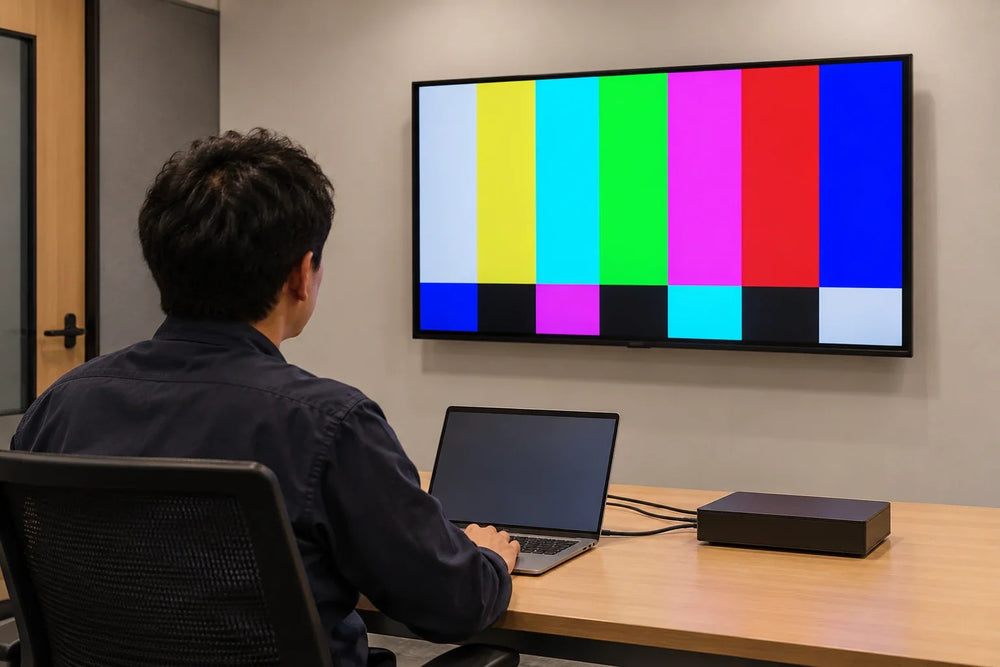
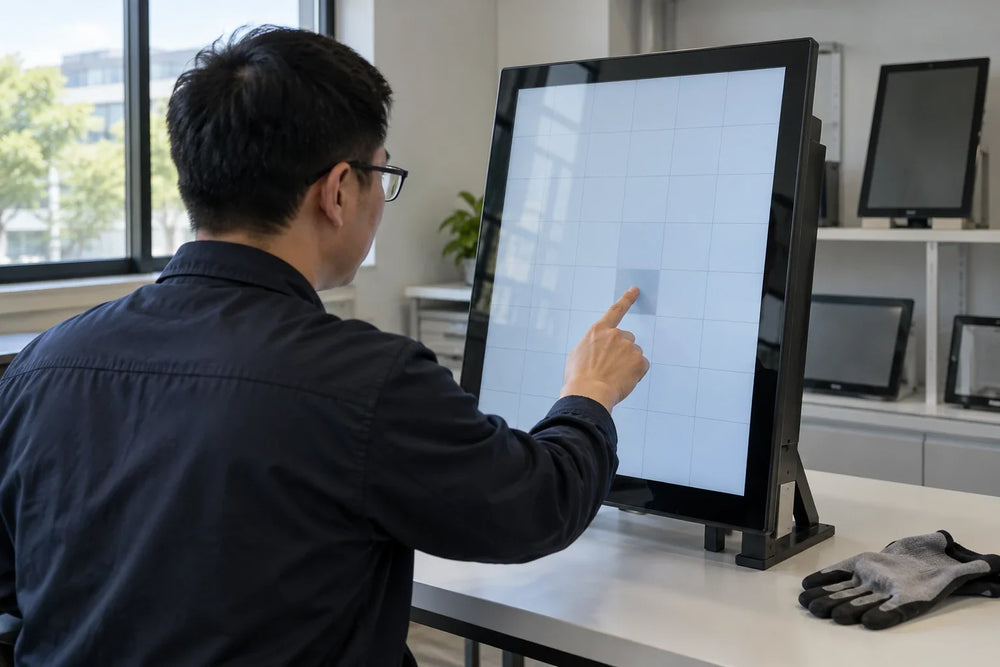
- Check the picture on the intended screen and record the result.
- Replace that program, then verify that the older version is gone.
- Test the required schedule and expiry behavior.
- Restart and confirm the intended program returns.
- Test the agreed interrupted-update and network-loss scenarios.
- Return to the normal workflow and save its settings and instructions.
For more detailed outage checks, use the offline playback test script. For platform fit, use CMS compatibility validation.
Frequently asked questions
Is USB automatically cheaper?
Compare total operating work. A local workflow may avoid a particular subscription but require staff visits and manual verification. Use actual project costs rather than assuming one method has no ongoing cost.
Can cloud signage work during an internet outage?
That depends on the selected platform, content type, downloaded material, and restart behavior. Test the required scenario instead of relying on the word “cloud.”
Does a USB drive have to remain connected during playback?
That depends on whether the selected player reads the drive directly or imports the files into storage. Confirm the documented workflow and test removal only when the instructions permit it.
Can one project combine USB and cloud updates?
It can be considered when the selected configuration supports both workflows. Define which method is authoritative, who may use a local update, and how the normal program is restored afterward.
What should I compare in a USB versus cloud quote?
Compare the player and software scope, subscriptions, content preparation, site visits, access control, recovery, and verification work. Use the project's update frequency and locations to estimate operating effort.
Specify your content-update workflow
Tell Gemdragon how many sites you plan, who creates and approves content, how often it changes, the network restrictions, and the required fallback. Request the proposed hardware and software scope so you can test the workflow before a wider order. Integration and CMS Compatibility is the starting point for that discussion.
Request a playback and update configuration
This comparison does not establish a particular license, USB function, or cloud entitlement for all models. Further procurement material is in Resources.