IR vs PCAP Touch Screens: Choose the Touch Stack, Then Test the Task
Compare the complete touch stack against the user’s actual task.
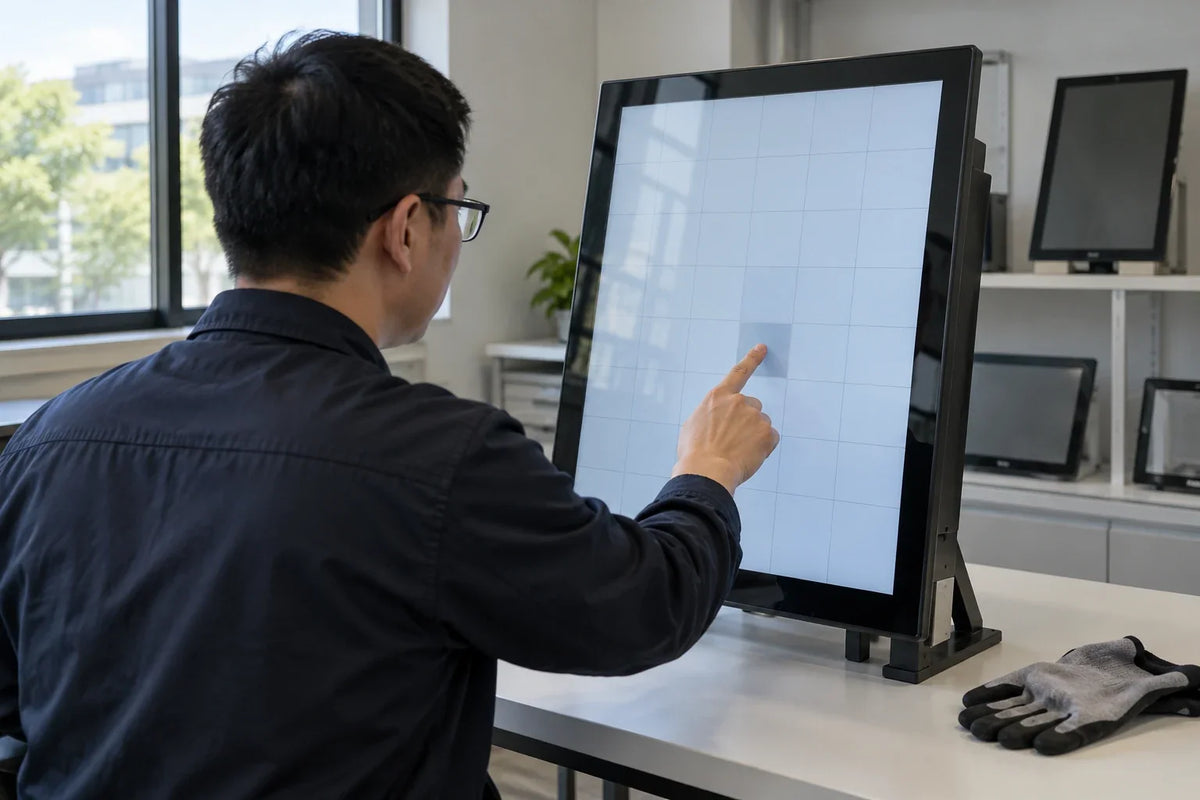
Infrared (IR) and projected capacitive (PCAP) touch screens detect input differently. IR systems locate an interruption in a grid of light beams around the screen. PCAP systems sense changes in capacitance at patterned electrodes beneath the cover surface. For a commercial kiosk, choose by the complete touch stack, enclosure, user input, environment, and application. Neither technology label proves glove support, outdoor suitability, accuracy, or compatibility with your player.
A touch screen can pass a simple tap test and still fail the project. The small Back button may be difficult to select, a drag may stop at the edge, or touch may map to the wrong screen after restart. Those are acceptance tasks, not brochure comparisons.
How do infrared (IR) and projected capacitive (PCAP) sensing differ?
An IR touch frame places emitters and receivers around the display. A finger or other suitable object interrupts the beams, allowing the controller to identify the location. Elo's IR explanation describes this operating principle. The frame and its installation are part of the touch system.
PCAP uses a sensing structure associated with the front surface and a controller that interprets capacitance changes. The cover material, sensor, controller, firmware, and tuning affect the finished behavior. EIZO's 2010 touch-panel overview describes the electrode-based sensing principle; its historical comparison table is not a current product ranking. A similar-looking glass front does not establish that two products use the same stack.
These descriptions explain the mechanisms. They do not transfer another manufacturer's specifications to Gemdragon or establish how an untested sample performs.

Which differences matter in a kiosk specification?
Compare requirements using the same tasks and test conditions. The table deliberately avoids assigning a universal winner.
| Requirement | IR: what to examine | PCAP: what to examine |
|---|---|---|
| Enclosure integration | Frame geometry, edge clearance, and unobstructed sensing area | Cover construction, sensor integration, and controller configuration |
| Finger, glove, or stylus | Whether the intended input is detected consistently | Whether the specific input and controller mode are supported |
| Small controls and edge gestures | Actual hit accuracy and drag behavior across the screen | Actual hit accuracy and drag behavior across the screen |
| Light and contamination | Behavior at the actual lighting and surface conditions | Behavior at the actual lighting and surface conditions |
| Application behavior | Input mapping, gestures, and touch recovery | Input mapping, gestures, and touch recovery |
| Service | Frame, cable, controller, and spare-part access | Cover/sensor assembly, cable, controller, and spare-part access |
Do not turn observations about one product into claims about a whole technology. For example, Elo's 9200 controller documentation lists gloved-hand input for that product and says specifications vary with configuration. That is enough to reject the blanket claim that PCAP never works with gloves. It is not proof that your chosen glove works on a different controller.
What does the user actually need to do?
Name the application task before requesting touch-point counts or response figures. A directory search, a product comparison, and a collaborative drawing application exercise different behavior.
For each task, identify the smallest required target, the required gesture, the intended user position, and any gloves or stylus. Test the actual interface at its final scale. A supplier's full-screen button demonstration may hide problems in a densely packed kiosk layout.
Include users who approach at different heights and positions. Ask the site team to assess reach, mounting, physical access, and an alternative assistance route. A technically accurate sensor does not make an inaccessible kiosk usable.

Why does a visible picture not prove touch compatibility?
Video and touch input need to be checked as separate paths. The display may show a correct picture while the operating system receives no touch input, maps it incorrectly, or interprets the gesture differently from the application.
Request a connection diagram for the exact configuration. Identify the video path, touch-data path, controller identity, operating system (OS), any required driver, and supported application behavior. Confirm whether any cable carries more than one function; do not infer that from its connector shape.
Test orientation and mapping after a restart. If the installation uses multiple displays, check that touching one operates the correct application on the correct screen. Disconnect and reconnect the permitted touch connection during a controlled test, then verify recovery.
The content management system (CMS) and hardware compatibility guide explains how to freeze a configuration so a test result remains meaningful. A technology name or a recognized USB device is not a complete application result.
What should a repeatable sample test contain?
Record the sensor/controller identity, firmware, cover material, enclosure revision, player model, OS version, application build, orientation, cables, and any driver or tuning settings. Preserve the approved configuration instead of calling the sample simply IR or capacitive.
| Test | Action | Evidence to retain |
|---|---|---|
| Target selection | Select the actual small controls at the center and edges | Missed or displaced touches and the test locations |
| Gesture | Perform the required drag, swipe, or multi-touch action | Where the behavior fails or differs from the application requirement |
| Intended input | Repeat with the approved glove or stylus, if required | Exact input item and controller settings |
| Site conditions | Test under the proposed lighting and approved surface conditions | Conditions, permitted cleaning process, and observed input behavior |
| Restart and reconnect | Restart the agreed setup and reconnect the input path where permitted | Mapping, detection, and recovery behavior |
| Long task sequence | Repeat a realistic user journey | Unexpected activation, stuck input, or incomplete reset |
Follow the manufacturer's approved cleaning and handling instructions. Do not wet equipment or apply chemicals merely to reproduce a generic internet test. If the intended environment creates a condition outside the product's documented scope, resolve that gap before approving the sample.

What should go into the purchase specification?
Write the required behavior and the accepted configuration. Include any approved substitutions and the rule for retesting when the controller, cover, firmware, operating system, application, or enclosure changes.
Request the cost of the complete installed system, including integration, cabling, spares, and replacement work. A lower touch-component price does not establish a lower project cost. Ask which part can be replaced independently and what happens to calibration or configuration after service.
Use the sample evaluation checklist to connect the approved unit to the repeat order. Mark a task not tested when it was not performed; do not promote that status to verified because another task passed.
Frequently asked questions
Is PCAP always more accurate than IR?
No universal result follows from the label. Compare the actual products using the same targets, gestures, cover and enclosure conditions, and application. Keep the observed result tied to the tested configuration.
Can a PCAP screen work with gloves?
Some PCAP implementations support specified gloves and modes. Ask for the intended product's documentation and test the exact glove. Neither a universal yes nor a universal no is an adequate purchasing answer.
Does IR automatically work in direct sunlight?
Do not assume so. Request the proposed model's permitted conditions and test its input behavior in the intended light. Touch performance and display readability are separate checks.
Does a touch screen need a separate USB cable?
That depends on the implementation. Ask for the exact connection diagram. Confirm how video, input data, and power are carried instead of assuming that one video connection supplies every function.
Can Gemdragon provide a configuration for our application?
Share the application, screen form, player and OS, required gestures, input items, quantity, and installation environment. Ask which configuration can be proposed and what still needs sample validation. This article does not confirm a particular touch technology or compatibility result for every Gemdragon product.
Start with the touch task
Gemdragon serves commercial-signage projects for system integrators and software solution providers. Send your required interaction and proposed playback configuration to begin a model-specific discussion. Request a sample test against those tasks before committing to a rollout.
Discuss a touch-display requirement
Continue with interactive signage use cases or browse commercial display fieldnotes.
Editorial scope: the comparison and test sheets are selection methods, not a laboratory ranking, a Gemdragon touch datasheet, or a record of completed compatibility testing. Cover image: photo-style AI scene illustration, not a customer installation or a verified product test.