Digital Signage Software Updates: Content, Player Apps, and Firmware
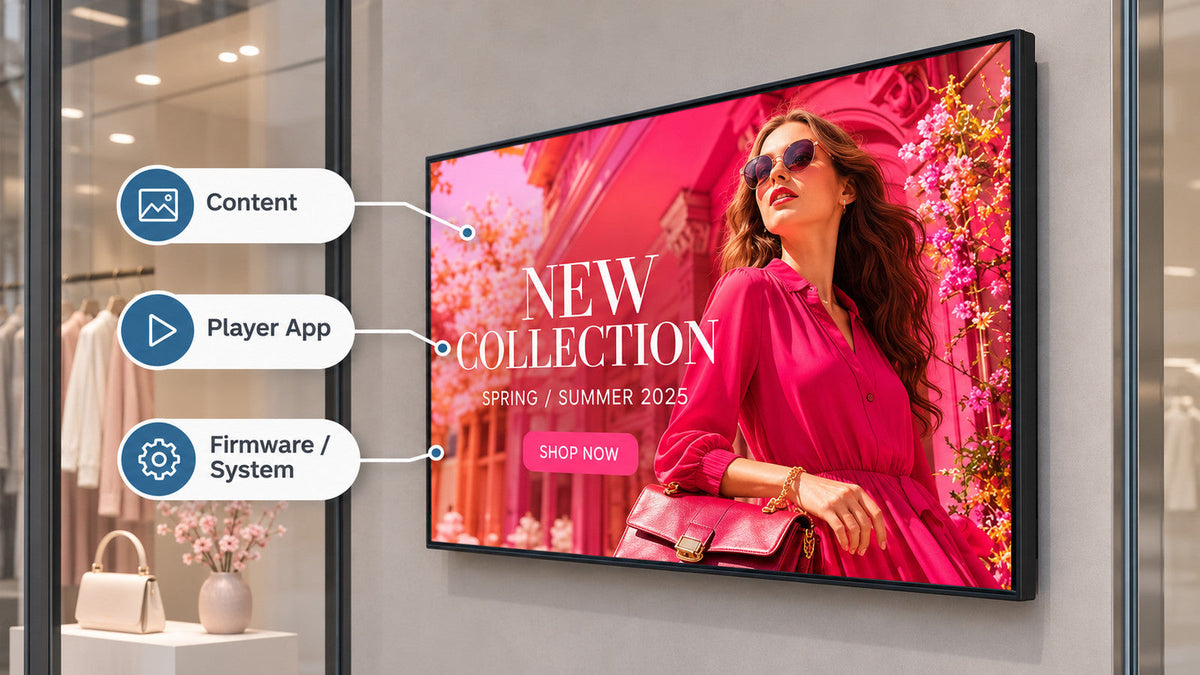
Cover: update categories shown conceptually on a window-facing LCD. The labels do not identify internal component locations or confirm installed update controls; the retail artwork is illustrative.
The marketing team changes a promotion. IT upgrades the player app. A supplier releases new device firmware. All three may be called a digital signage update, but they change different things and need different recovery plans.
Separate content publishing, player application updates, and operating-system or firmware updates before approving automatic updates. Name the owner and authorized installation route for each, test the changed configuration, and confirm what recovery is actually supported. A CMS that can send a new photograph has not thereby demonstrated that it can safely upgrade the player.
This guide is for retailers and integrators planning unattended screens, including window-facing LCDs. Use the CMS and hardware compatibility checklist to establish the initial configuration. The question here is what happens when that accepted configuration changes.
Name the change before choosing the button
A content release changes the presentation: an image, video, layout, playlist, or schedule. A player app release changes the software that interprets or plays that presentation. An OS or firmware release changes the underlying device environment. Some systems bundle releases, so obtain the provider's actual release scope rather than assuming those boundaries are separate controls.
A hosted CMS service can also change independently of the device. Ask who manages that service, how compatibility is maintained, and how users learn about changes. Restoring a file on one screen does not restore a cloud service.

On a narrow screen, scroll the table sideways to compare all columns.
| Change | Record before release | Verify afterward | Define recovery |
|---|---|---|---|
| Content | Approved asset and schedule, target screens, validity and expiration | The intended, still-valid message appears on the intended screens | Restore approved valid content or use the agreed fallback |
| Player application | Current and proposed app versions, source, dependencies, settings and enrollment | Required media, schedules, authentication and restart behavior | Provider-supported reinstall, restore or replacement path; keep needed settings |
| OS or firmware | Exact device/build, applicable package, prerequisites, power and service access | Startup, display output, network, management access and actual playback | Manufacturer-supported procedure and restrictions; confirm whether downgrade is permitted |
Ask suppliers to fill the recovery column with a procedure and its prerequisites. “We can roll back” leaves the important noun missing. A previous playlist, an app installer, and a complete device image are different recovery objects.
Automatic has a scope
Check which component initiates an update, where it obtains the release, and which account or management role controls it. An app's update setting does not automatically govern Android system updates or a separately managed display controller.
Android's system-update documentation distinguishes device-owner management from profile-owner reporting and describes automatic, windowed, and postponed policies. Those controls require the applicable management environment and implementation. An Android version label on a quotation does not establish that the supplied display exposes them.
Installation routes matter too. Play Digital Signage documents a difference between its Android app installed directly from an APK and app-store installation. NoviSign's settings reference gives conditions for its own app-upgrade feature. These are examples of provider-specific behavior, not instructions to root a device or evidence that either platform is included with a Gemdragon display.
Request the supported method for the proposed configuration. Keep security updates within an agreed patch policy; “never update” is not a recovery plan. Urgent fixes need an authorized expedited route as well as the ordinary maintenance process.
Test a representative configuration, not a convenient screen
Group screens by the differences that could affect the release: player hardware revision, OS build, app version, installation route, relevant settings, and content workload. Two identical-looking cabinets can contain different playback platforms. A spare office screen is useful only for the configurations it represents.
For a window display, include the actual orientation, representative promotional media, the applicable schedule, and the approved network path. If a release changes a browser component or media engine, include the web pages or codecs the installation uses. Keep a comparison unit unchanged where practical so an unrelated source or network fault is less easily mistaken for an update failure.

Use a controlled test agreed with the responsible provider:
- Save the current version record, approved content, settings and supported recovery materials. Confirm who can reach the device if remote access is lost.
- Apply the authorized release through its supported route during the agreed maintenance window. Keep other configuration changes separate where practical.
- Verify the actual screen, required media, publishing, time-based behavior, connectivity recovery and a supported restart. Record the installed version rather than relying on a command marked “sent.”
- Exercise the documented recovery path on a suitable test device where supported. Record restrictions and any untested steps.
- Review exceptions before approving a named device group. Define what stops expansion, who investigates, and what remains on screen while the issue is unresolved.
Choose the observation period around the site's operating cycle and the release risk. A single clip playing once does not test the next opening, scheduled change or reconnect. Friday closing time is a calendar entry, not a maintenance strategy.
When rollback is not available
Do not assume an earlier app or firmware package remains installable. Version compatibility, signed packages, device policy and provider restrictions can limit what can be restored. Ask the responsible supplier for the supported recovery options before rollout; do not improvise a downgrade from a file found online.
Recovery may require reinstalling a supported build, restoring settings, re-enrolling the player, replacing a playback module, or arranging an authorized site visit. Identify what each option requires and who provides it. A backup that cannot be restored with the available access is an archive, not a demonstrated recovery path.
Content recovery needs its own accuracy check. An old promotion may be technically playable but no longer valid. Restore only content that remains approved, or use an agreed neutral message. The offline playback test covers unavailable-network behavior; it does not authorize stale prices or withdrawn offers.

Keep the release record useful after handover
Record the screen group, previous and resulting versions, changed settings, responsible person, evidence, exceptions, recovery status and next review. Keep content approval separate from device maintenance access. Our multi-location content-control guide explains the publishing permissions; the management-access handover guide covers who may service the player.
A record should distinguish downloaded, installed, restarted, and verified in use. If installation was confirmed but recovery was not tested, say so in the operating record. Do not turn that gap into a claim that the entire rollout passed.
Questions before rollout
Does automatic content publishing include app or firmware updates?
Not necessarily. Obtain the exact scope and controls for content, the player app and the device system. Some platforms bundle operations; verify their documented behavior on the proposed configuration.
Can we reuse the previous compatibility test?
Use it as the baseline. Review what the release changes, repeat the affected tests, and check the business-critical operating path. A result applies to the versions and conditions recorded with it.
What should we ask Gemdragon to confirm?
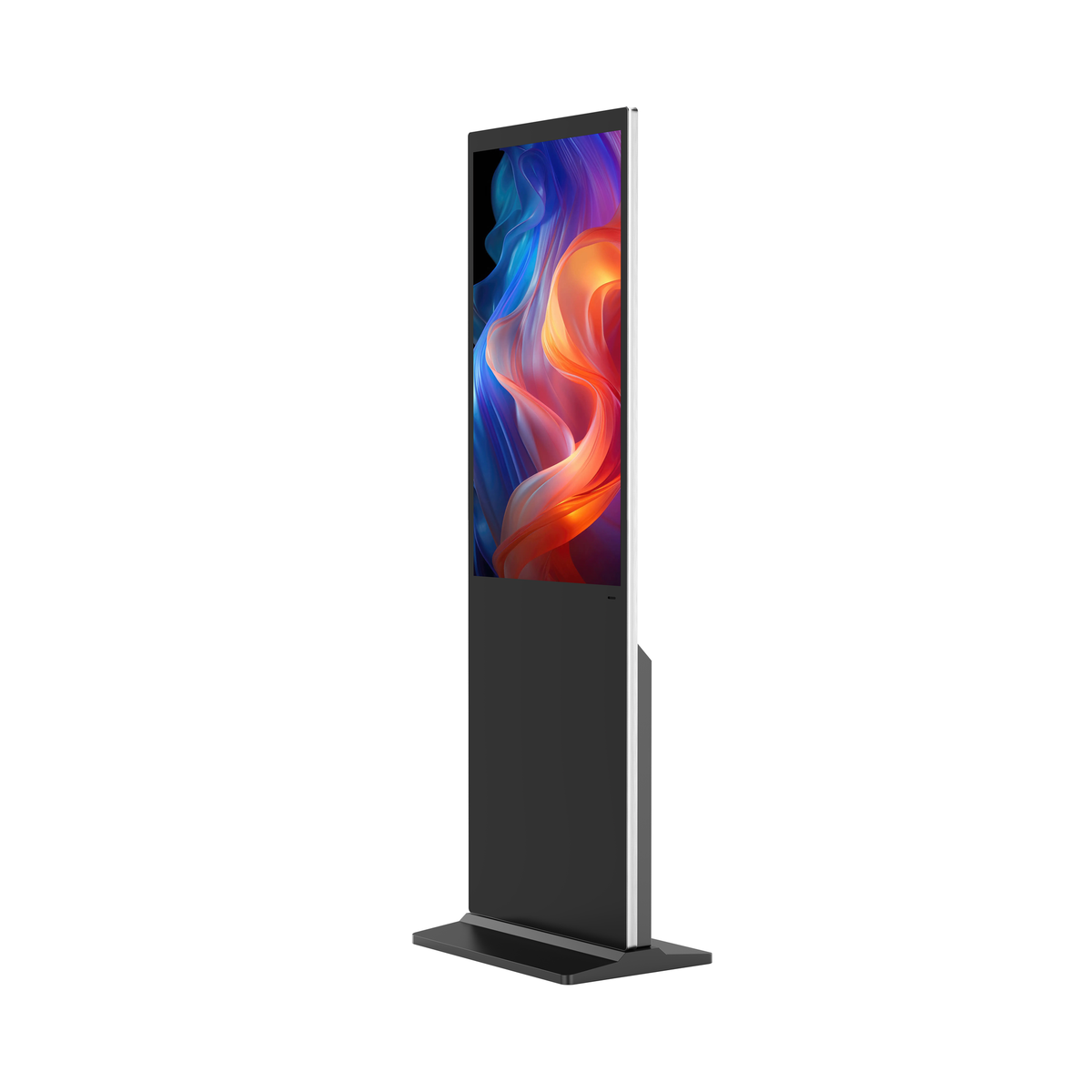
For a Slim Bezel High-Brightness Window Display, send the proposed player platform, application and OS versions, content workload, management requirements and service arrangement. This is a single-screen, non-touch LCD for indoor installation facing outward through glass. Update controls, third-party software support and recovery must be confirmed for the quoted configuration.
Keep the software provider's update and recovery requirements with the hardware brief so the two can be reviewed together.