Digital Signage for Gyms: Plan Reception, Studios and Member Updates
Plan gym screens by location: reception timetables, studio sessions and member notices. Includes change ownership, expiry and a pilot checklist.
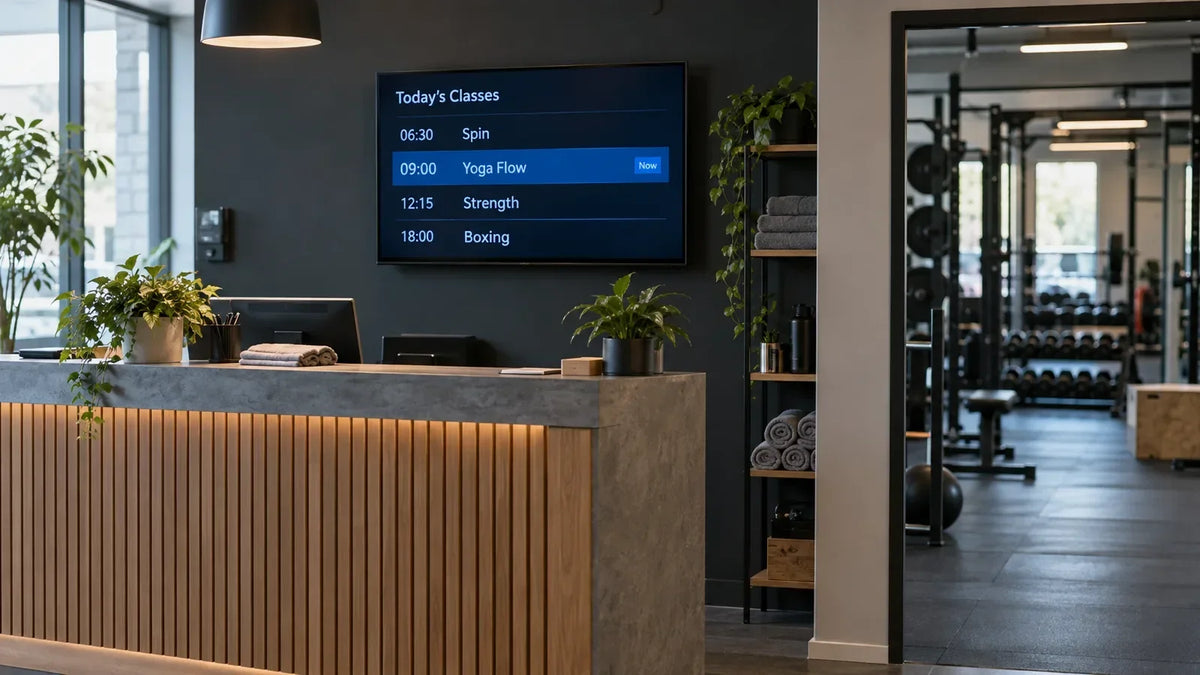
At reception, a member wants to know which class starts next. Outside a studio, they need to know whether they are at the right door. On the training floor, a long timetable may be unreadable from the equipment. Digital signage for gyms works better when each screen answers the question people have at that location, with a clear process for timetable changes and short-notice updates.
For a chain or an integrator planning several sites, start with three screen roles and a source of information for each. Then choose display positions and hardware around those roles.
Which information belongs in each zone?
Reception can carry the next few classes, a location cue and an urgent member notice. A studio entrance needs the current session, the next session and any cancellation or room change. A training-floor display may suit short facility notices or approved instructional content, depending on viewing distance and how the space is used.
Avoid putting all three jobs into the same rotating presentation. A member standing outside a studio should not have to wait through promotions to find out whether the class moved. Keep the immediate answer visible long enough to use.
Yodeck's gym signage page illustrates common uses such as schedules and member communication. That is a platform vendor's use-case description; your booking-system integration and actual playback behavior need their own validation.

Who confirms a last-minute class change?
A scheduled import is only useful if the source is current. Decide whether the timetable comes from the booking system, a reviewed spreadsheet or manual CMS entry. Record which system is authoritative when they disagree.
Use this worksheet for the content handover. It is a project starting point, not a universal operating rule.
| Screen role | Information source | Change that triggers a check | Who signs it off |
|---|---|---|---|
| Reception schedule | Approved booking timetable | Cancellation, room change or instructor substitution | Site operations checks the revised next classes |
| Studio current/next | The same timetable with room assignment | Session ends early or moves | Studio/site staff confirm the room and time |
| Member notice | Approved notice text | Facility disruption or changed opening hours | Site manager confirms wording and expiry |
| Training-floor content | Approved content library | New program or withdrawn instruction | Responsible team approves the version |
For a cancellation, publish the revised information and check the physical screen. A successful save in a booking system does not prove that the reception display refreshed. Record when the change reached the screen, especially during the pilot.
If the feed fails, choose a usable fallback. General facility information may remain helpful; an old “next class” message can send a member to the wrong room. Our live-data fallback guide explains how to decide which fields can remain visible and which should expire.
How should content change through the day?
Plan around what members need at that time, rather than filling every minute with a different asset. During arrival peaks, prioritize the next classes and locations. Between sessions, allow more space for member notices. Near closing, show confirmed closing information and the next opening period.
Make temporary notices short. State what changed, who it affects, the alternative and when the notice expires. For example, a fictional notice might read: “Studio B session moved to Studio A. Please check in at reception.” Its usefulness comes from the specific action, not a decorative full-screen graphic.

Set an end time and name the person who checks removal when creating the notice. If no automated expiry is available, put removal into the shift checklist. A notice that remains after the room reopens becomes another source of confusion.
What changes when you run several gyms?
Keep shared brand assets and approved templates central, while defining which local facts a site can update. Different locations may have different timetables, opening hours and rooms. A template can be shared without sharing the underlying schedule.
The multi-location content control guide covers editing permissions. Here, the key handover is operational: who checks a changed class, who covers that task during another shift, and how the site verifies the result.
Test one ordinary change and one exception at the pilot site. Move a fictional session to another room, cancel another and let a notice expire. Ask a staff member who did not build the system to follow the update instructions. Record any step that depends on undocumented knowledge before copying the setup to more locations.
Which physical details affect the display choice?
Read the content from the member's actual position. Check glare from windows and lighting, competing signs, the amount of text and access for service. A schedule designed on a desktop monitor can become too dense when viewed across reception.
For wall-mounted displays, confirm the mounting surface, cable route and how connections can be reached. Treat humidity, cleaning practices and unusual room conditions as requirements to confirm for the specific model. Do not infer suitability for a wet area from a display's appearance.
Gemdragon's core display range serves indoor floor-standing, wall-mounted and window-facing projects in the 43–65-inch category. Send the site layout, screen roles, timetable source and planned player/CMS arrangement so the discussion starts with how the gym will use the screens.