Multilingual Digital Signage: Test the Message on the Actual Player
A signage dashboard can speak Spanish while the screen in the lobby still shows yesterday’s English artwork. Both settings may be working exactly as configured. They are simply doing different jobs.
For multilingual digital signage, approve the translated message, the way the chosen player renders it, and the visitor’s language-selection experience separately. A list of supported languages is a starting point for questions, not an acceptance record.
This guide is for integrators and content teams preparing public-information or workplace displays. It adds language-specific checks to the broader HTML5 content-package acceptance process. The checklists below are proposed project methods, not results from a completed product test.
Separate three language capabilities before comparing suppliers
Start by asking what the supplier actually means by “multilingual.” An administrator’s console language, text inside an uploaded video, and a visitor-facing application can have separate settings and separate owners.
EasySignage makes this distinction explicit in its console-language documentation: changing the management interface does not translate a customer’s media or application content. That is documentation for EasySignage, not a feature statement about every CMS or a Gemdragon configuration.
Language capability: what needs approval
On a narrow screen, scroll the table sideways to read all columns.
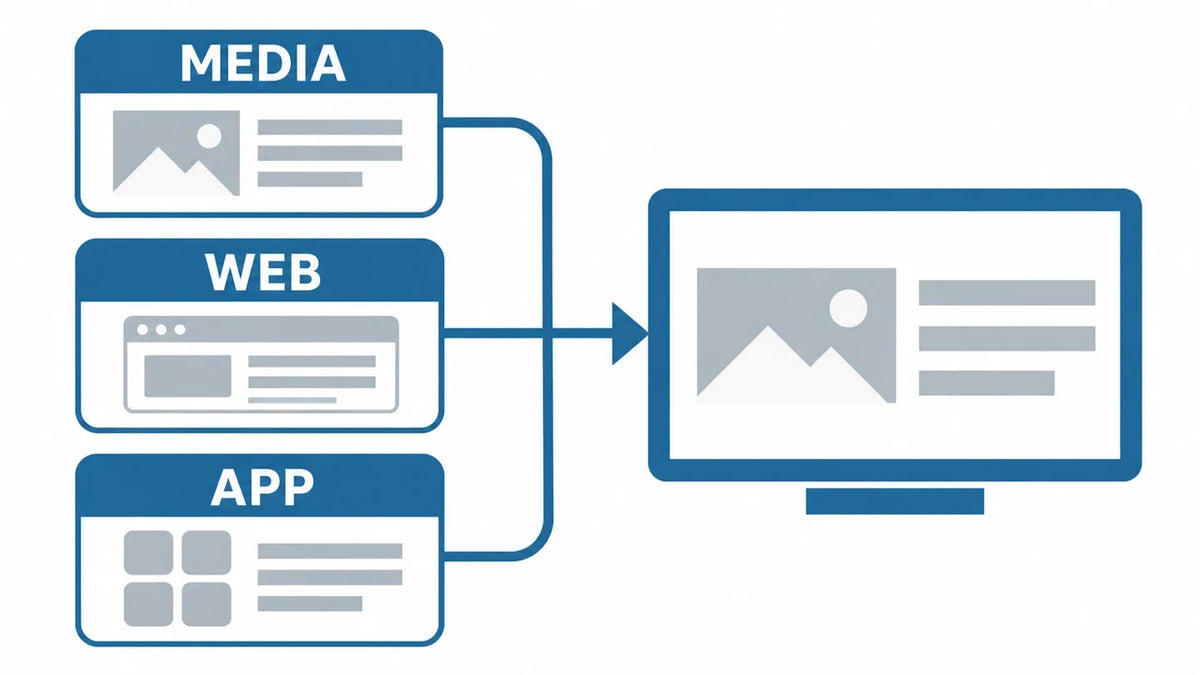
| Layer | What the buyer supplies or confirms | What to inspect on the endpoint |
|---|---|---|
| Media: images and video | Approved language variants, export settings and version labels. | The correct file plays; complete text remains visible; captions and audio match the approved version. |
| Web: HTML or live content | The required fonts, language metadata, text direction and dependencies. | Characters, shaping, mixed-direction strings, wrapping and fallback behavior in the selected rendering engine. |
| App: visitor interface | Translated labels, language selector, default language and session rules. | Search, help, errors and the next session work consistently in each enabled language. |
An image with approved text can be a practical choice for a short notice. It still needs its own translation review and playback check. A web application offers different update and interaction options, with more rendering dependencies to verify. Neither format gets a free pass because the preview looked good on a laptop.
Build a small sample pack with the difficult strings
Ask a competent reviewer for each intended language to choose representative content. Do not let the design team approve a language solely because the text fits the box. Ask the reviewer to confirm meaning, terminology and what a visitor is expected to do.
- Include the longest approved destination or department name, a short instruction and a translated help message.
- Include the actual scripts, accents and punctuation required for the project. Use the characters your audience needs, rather than a decorative row of flags.
- For right-to-left content, include a mixed string with a room identifier, number, time or Latin product name.
- Include a deliberately unavailable translation in a test environment, so the team can observe the agreed fallback.
- For a kiosk, include a search with no result, a language change midway through a task and the following visitor’s start screen.
Record the sample version, language reviewer, intended screen orientation, CMS/player build and content format. Redact confidential information. The goal is a reproducible content sample, not a production export containing staff or customer records.

Run the language check on the actual player
Use the proposed endpoint, intended resolution and orientation, and the installation’s normal viewing position. A screenshot is useful for a rendering defect; a short playback recording is more useful when a language disappears halfway through a loop.
For web content, language and direction need separate attention. W3C guidance on HTML direction explains that the language attribute does not establish the text’s base direction. Have the application team review direction and mixed text rather than trying to fix a right-to-left layout by aligning everything to the right.
A practical endpoint acceptance matrix
On a narrow screen, scroll the table sideways to read all columns.
| Check | Test action | Evidence and decision |
|---|---|---|
| Glyphs and shaping | Open each approved sample in the selected player or app. | Reviewer checks missing characters, joined-script shaping and punctuation against the approved source. |
| Direction and mixed text | Read the right-to-left sample containing a room code, time or number. | Record whether identifiers, punctuation and reading order remain correct; escalate defects to the rendering/application owner. |
| Wrapping and visibility | Show the longest approved text in the final layout and orientation. | No required instruction is clipped, hidden behind a control or reduced below the project’s agreed readable size. |
| Language availability | Select every enabled language; open help, errors and empty states. | Record untranslated interface areas, inconsistent terminology and the agreed action for a missing translation. |
| Restart and lost connection | Reopen the app and repeat the sample under the approved offline test procedure. | Record what survives, what cannot load and whether the shown fallback remains understandable in the required language. |
| Next visitor | Change language, leave the task and start another session. | Verify the approved default/reset rule and that previous input is not exposed to the next visitor. |
These are separate checks. Passing a translated video does not approve the HTML renderer. Passing the renderer does not approve the app’s language selector. Record failures against the relevant content, software or hardware configuration so the fix reaches the right team.
If content uses live feeds, agree what the visitor sees when a translation or source cannot be retrieved. The live-data fallback guide covers source availability and freshness; add language-specific review to that decision.
Keep language versions together when a message changes
A translated notice can be accurate and still be the wrong notice. Use one message identifier with a version and approval status for each language. When the source message changes, mark affected translations for review rather than assuming that an old file is still valid.
Before release, the content owner should be able to answer three questions: Which language variants are approved? Which screens or audiences receive each variant? What happens if a required variant is missing? Write down whether publishing is held, a named alternative is used, or the message is withdrawn. The choice depends on the message and the organization; a silent substitution should not become the default by accident.
Check the release once it is actually playing. A green status in the management console and the message visible to the audience are different pieces of evidence. Keep a record of the tested version and any unresolved exceptions.
Choose a language loop or visitor selection deliberately
On a passive display, putting every language on one crowded slide can make every version harder to read. Separate items may be clearer, but a person who arrives midway through the loop may leave before their language appears. Use the dwell-time and playlist-loop method to test that tradeoff with the actual content and audience.
On a touch display, a language selector can let the visitor choose. Confirm that it is available when needed and that help, errors and destination names follow the choice. Decide what resets after inactivity or completion. Our next-session test covers the broader session boundary.

Questions to settle before rollout
Does an Android or Windows specification prove language support?
No. Identify which component renders the message and which application handles interaction. Confirm the selected software, fonts and configuration with a representative content sample. Operating-system labels alone do not approve the full experience.
Can automatic translation replace approval?
Do not make that assumption. Agree who reviews meaning, terminology and instructions for the intended audience. If a proposed platform includes translation tools, confirm their actual scope and the organization’s approval process separately.
Can a multilingual sign be the only way to deliver an urgent instruction?
This checklist does not establish emergency-notification suitability. The responsible organization must define appropriate communication channels, accessibility, reliability and any specialist requirements for that use.
Bring the sample into the hardware discussion
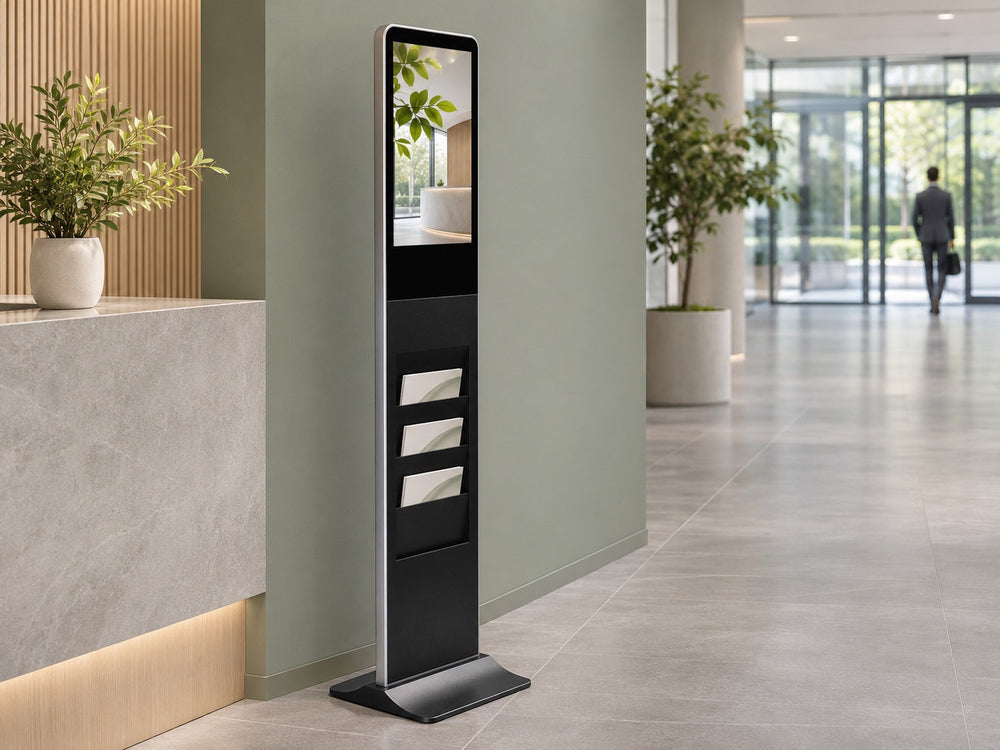
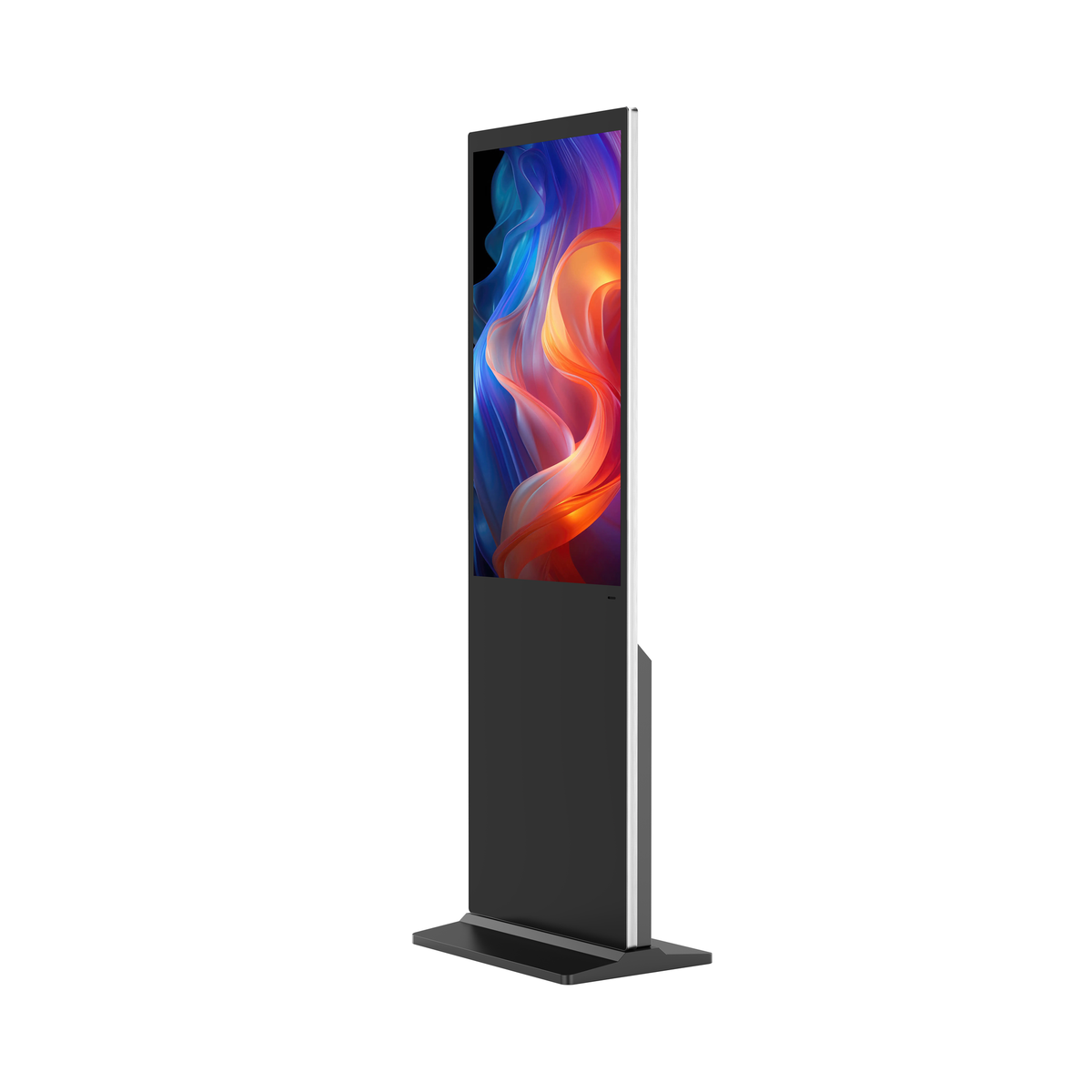
Gemdragon’s existing ultra-thin floor-standing digital signage provides a physical display format to discuss. Specify the languages, sample content, viewing position, orientation, touch requirement and intended CMS/player. Confirm the exact configuration and run the acceptance checks before rollout; automatic translation and universal application compatibility are not established here.
Discuss the display and player configuration
For the wider software decision, continue with CMS and display compatibility testing.