
Wall-Mounted Digital Signage Physical Security: Protect Access and Preserve Service
Use an access-surface map and an authorized service sequence to assess physical protection for a wall-mounted display.
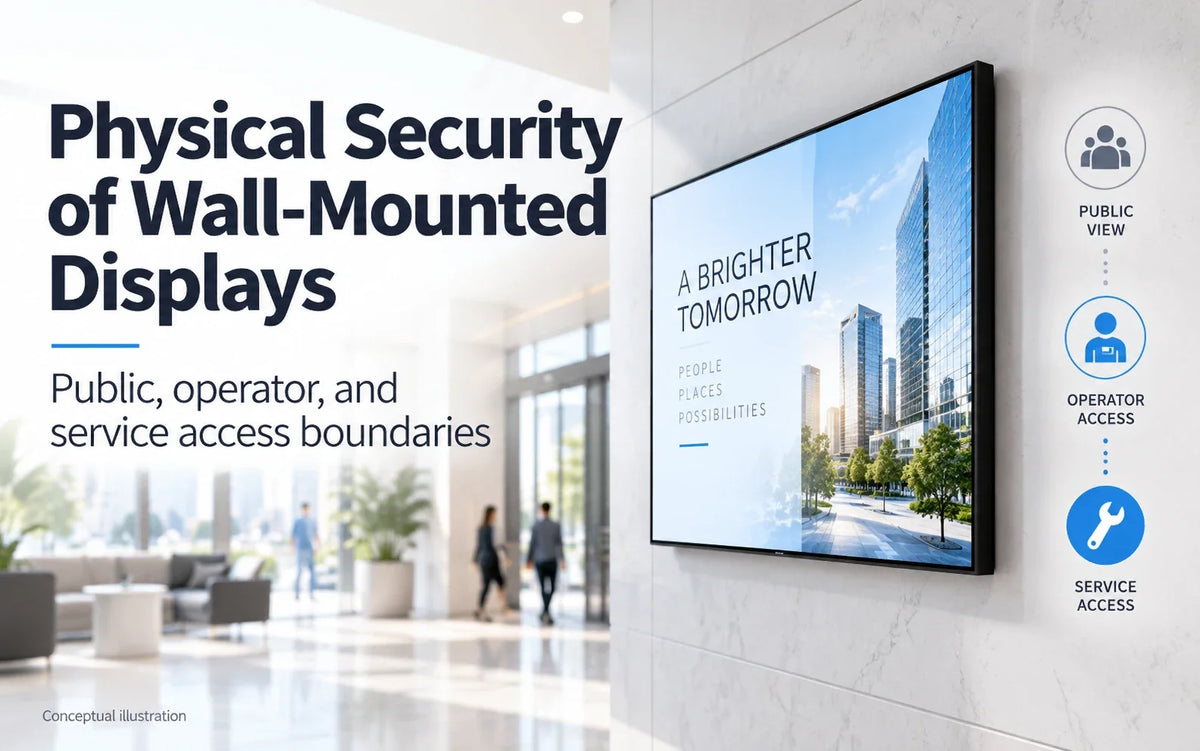
Cover reference: ChatGPT conceptual cover illustration. It is not a Gemdragon installation photograph, field test, or product configuration drawing.
A kiosk-mode restriction controls the application interface. Physical security addresses another set of questions: who can reach the local controls, connections, power, mounting hardware, and service openings of a wall display?
Map those surfaces before choosing controls. A locked cover may help protect access, but it also becomes part of the cooling and service arrangement. The useful specification protects the intended boundary while leaving authorized staff a workable way to operate and maintain the equipment.
Start with the surfaces that actually exist
Walk the proposed position and record the reachable parts of the selected configuration.
The front. The panel surface and, where touch is specified, the touch overlay. On a public-facing screen this is the largest reachable area and the one that receives the most contact.
The edges. Source and input keys, a power button, an infrared receiver, ambient light sensors, and service or USB ports where the model provides them. Which of these exist, and where, depends on the specific configuration — a product option menu describes screen size, touch and system choices, not a port layout.
The bottom and rear. The connector bay, the cable exit, ventilation openings, the mounting interface, and any service access the design provides.
The power path. The outlet, the plug, the circuit, and anything a person could switch off or unplug without a tool.
The network path. Reachable data connections and network equipment. Account credentials need a separate controlled access record.
The access points the site added. A keyed cover, a cabinet, a lockable box, an enclosure. Each one is a surface with its own key, its own closure check and its own thermal consequences.
Write them down before choosing controls. The list is short, and it exposes the gaps that a feature comparison misses — for example, that a screen locked to one application can still be switched to a different input by a button on its edge.

Agree different access for public, operator, and service roles
The public, the operator, and the service technician need different things from the same installation. Agree the actual responsibilities rather than assigning every operator the same access by habit.
Scroll horizontally if needed to compare all columns.
| Role | Required task | Boundary to establish | Operational question |
|---|---|---|---|
| Public | Read content or use the intended touch application | Access to settings, media insertion, fixings, and power | Can the public task work without exposing service controls? |
| Operator | Publish content and perform permitted recovery | Content permissions and approved local actions | Can routine work be done without defeating a closure? |
| Service | Diagnose and replace authorized parts | Opening, supported service state, and restoration | Who grants access and verifies closure? |
Keep cleaning and normal operation in the review. A control that makes an everyday authorized task impractical may encourage an informal workaround. Resolve that conflict in the design rather than relying on a permanently propped-open cover.
Verify software and physical boundaries separately
Application lockdown constrains actions through the selected interface. It does not, by itself, establish what a person can do through reachable connections or local controls. Conversely, a physical enclosure does not establish that the application prevents an unintended session or settings change.
Whether a keyboard, removable device, or control can change behavior depends on the hardware, operating system, configuration, and software. Do not assume that reaching a port necessarily bypasses security, or that disabling one port protects every other route.
Use the kiosk-mode session test for the application task and a physical walk-through for reachable surfaces. Limit all checks to equipment and actions the project authorizes.
For an enclosure example, Legrand AV's Chief Impact on-wall overview describes tamper-resistant hardware, service-access arrangements, and cooling provisions in its own designs. Use those mechanisms as questions for the proposed assembly. They do not establish the same features, a security rating, or compatibility on Gemdragon hardware.

Protect access without obstructing cooling or safe service
A cover can alter airflow and access to the equipment. Obtain a supported assembly design instead of sealing openings or modifying the display to fit an improvised box.
Have the enclosure and display suppliers review the actual configuration, including any player or power equipment inside it. Identify the intended ventilation path, maintenance requirements, and supported service method. Preserve access and isolation arrangements required by the equipment instructions and the site's responsible professionals.
Do not cover sensors, block vents, drill the display, or relocate its components without the appropriate manufacturer-approved procedure. A later protective accessory should trigger the same assembly review as one specified at the start.
Include ventilation and closure condition in the maintenance routine. A symptom such as a restart does not establish overheating or any other specific cause; preserve the observations and investigate through the agreed support process.
Build a physical access-surface map
Fill this in per position. Two screens in the same building can have different exposure. Keep sensitive access details in a controlled project record.
Scroll horizontally if needed to compare all columns.
| Surface, where fitted | Who can reach it? | Permitted action | Proposed control | Verification and owner |
|---|---|---|---|---|
| Front and touch surface | ||||
| Local keys and receivers | ||||
| Media and service connections | ||||
| Cable exit and rear access | ||||
| Power and network connections | ||||
| Fixings and protective closure | ||||
| Ventilation openings |
The verification field distinguishes a specification from an observation. Record what the authorized reviewer actually checked at the visitor position, the resulting access, and any remaining gap. Do not label the map a penetration test or a certified tamper assessment.
Rehearse the authorized service scenario
Agree the sequence with whoever will open and maintain the assembly.
- Authorize the work. Record the position, purpose, permitted actions, and responsible approver.
- Issue access. Use the site's key or access-custody process. Keep credentials outside the ordinary service note.
- Open under the instructions. Follow the supported service state and handling method; do not force a bezel or closure.
- Perform the agreed work. Record additional changes rather than allowing undocumented adjustments to become the new baseline.
- Close and inspect. Check the applicable fasteners, locks, cable path, and ventilation parts against the assembly instructions.
- Verify operation and return access. Confirm the expected content and intended controls, then record closure and key return.
A closed ticket and a restored installation are different observations. Keep the result of the physical closure check with the operating result.

The player-access handover guide addresses the account and management interfaces. Review key custody and account ownership together when staff or contractors change, while preserving their separate records.
Frequently asked questions
Can a software port restriction replace physical access planning?
It may be one useful control where the selected configuration supports it. Verify its scope, and separately review local keys, power, mounting, and other reachable parts.
Does a locked enclosure establish a tamper rating?
No. If the project requires a rating or listing, obtain the specific evidence for the proposed assembly and its scope. Appearance and a general security description are insufficient.
What changes when public touch is specified?
Include the intended interaction, cleaning, mounting, and between-user session behavior in the review. Confirm the actual touch assembly and application; optional touch does not define a complete public-use workflow.
Turn the access map into a configuration request
Describe who can approach the wall, what they should be able to do, the required operator actions, and the available service route. Request a Quote for Ultra-Thin Wall-Mounted Digital Signage with that scope. Match any physical protection and software controls to the selected configuration before accepting the installation.
Product photos, catalog renders, and video stills are supplied Gemdragon materials with source-specific captions. Covers and diagrams are conceptual illustrations, not field measurements or installation approvals.