
Meeting Room Booking Displays vs. Lobby Signage: Define the Booking Boundary
Separate the lobby directory, door panel, and in-room workflow, then verify the account and booking service behind each permitted action.
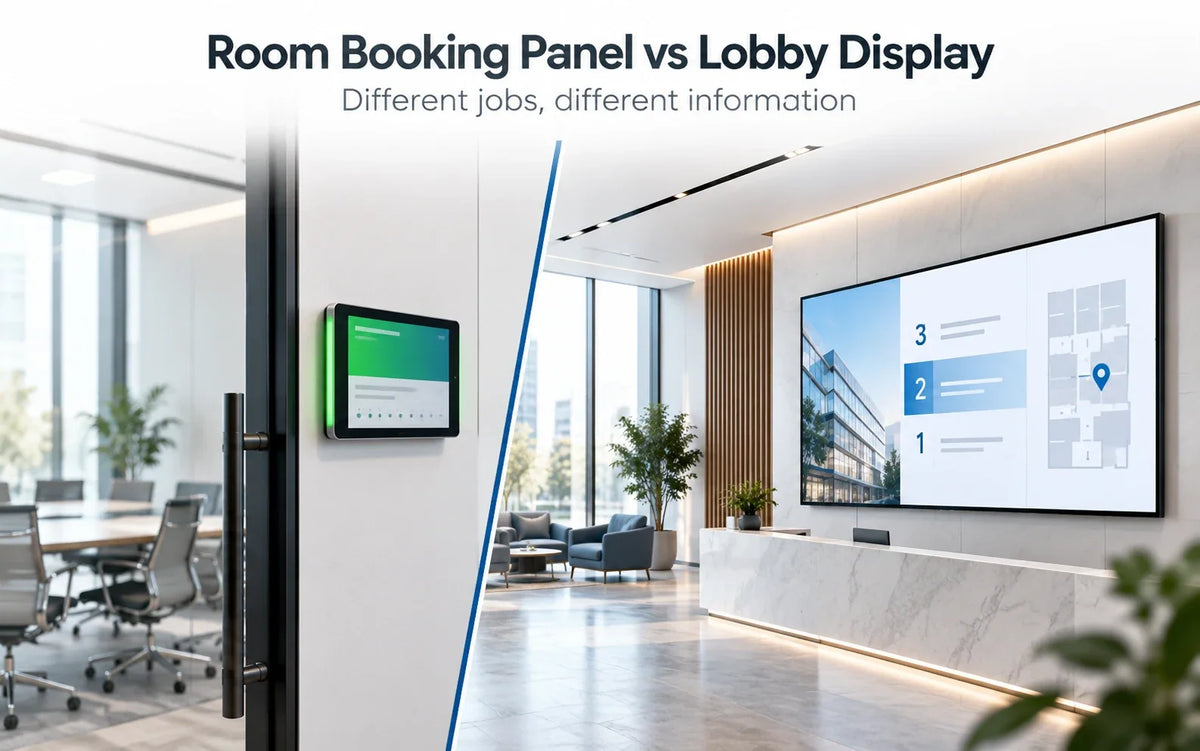
Cover reference: ChatGPT conceptual cover illustration. It is not a Gemdragon installation photograph, field test, or product configuration drawing.
Two screens can sit outside the same meeting room and behave differently. One displays a schedule. Another can change a reservation. Whether the application can write to the booking system affects permissions, conflict handling, privacy, and what users should trust at the door.
Set that boundary before comparing hardware. Touch is an input method; it does not create reservation authority. That authority comes from the application, its account, and the service that owns the room record.
Separate the screen roles before comparing products
A lobby directory, door panel, and in-room display answer different questions. They can share data, but each needs an explicit task and information scope.
Scroll horizontally if needed to compare all columns.
| Role | Main task | Data or authority to establish | Failure to plan for |
|---|---|---|---|
| Lobby directory | Find the room or destination | Approved room list, directions, and any permitted status feed | Wrong destination or stale status |
| Door panel | Check this room and, if required, reserve it | Booking source, account permissions, and supported actions | A displayed or submitted state that disagrees with the calendar |
| In-room display | Present the meeting or support the room workflow | Selected meeting application and its permitted controls | Exposed content, failed handoff, or misleading next-meeting information |
Write down which roles need read access and which need booking, cancellation, or check-in actions. These are design choices, not restrictions determined by the size or location of the screen.
The corporate signage planning guide covers audience and information ownership. This article adds the reservation boundary and the evidence needed to accept it.

Read a booking product as a set of operating rules
Microsoft's Teams Panels documentation describes dedicated touchscreen devices outside meeting spaces, displaying calendar information and supporting specified reservation actions. It also documents private-meeting presentation, synchronization behavior, and limits on actions at the panel. Those are rules for Microsoft's platform, not universal room-display behavior.
Use that example to form questions for the proposed service. Which actions can an anonymous visitor perform? Which require an authenticated account? Who can cancel another person's reservation? How are simultaneous requests resolved? Which system confirms success?
A booking button should report the outcome from the authoritative service. A locally displayed confirmation, or a responsive animation, does not establish that the calendar accepted the request. Likewise, opening a calendar in a browser does not by itself establish the permissions or device certification a project requires. A browser application can support booking when the actual integration provides it; verify that integration rather than judging it by its appearance.

Define what happens when schedule data is late
A feed that fails silently can leave yesterday's schedule looking current. Decide the stale-data policy before installation: show a visible last-update time, use a neutral message directing people to the booking service or reception, or withdraw the availability field. Choose a policy the actual application can implement.
Agree a freshness requirement with the workplace team and test it on the intended network. Do not copy a synchronization number from another platform. The accepted interval depends on the task and the chosen service.
Record which system handles no-shows, meeting extensions, cancellation, and time-zone changes. A read-only screen reports those decisions; it does not necessarily make them. The live-data fallback guide addresses the wider content-failure pattern.
For Gemdragon's wall-mounted product, Android, Windows, standalone playback, and dual-system plans are configuration options. They do not establish a particular calendar application or booking integration. A packaged playlist may be sufficient for directions, while current availability needs an agreed data and update path.
Approve the fields visible from each approach
A meeting title or organizer name can reveal more than the room's availability. Decide what the actual audience needs before connecting the feed. A public lobby may need only the destination and a general status, while another location may have an authorized reason to show more.
Check private calendar items and ordinary items separately. A privacy flag in one application does not establish what every integration displays. Test the actual fields, including any fallback, error, and login screens.
Walk the approach as a visitor would, including views through glazing or an open door. Record the permitted information scope rather than treating every visible name as automatically acceptable or automatically prohibited. The organization's data owner should make that decision.
Accept the reservation workflow on the actual configuration
Use authorized test bookings, accounts, and network procedures. The worksheet below proposes cases; it is not a report from an installed Gemdragon system.
Scroll horizontally if needed to compare all columns.
| Case | Outcome to agree | Evidence to keep |
|---|---|---|
| Book from the main calendar | Display reflects the accepted record within the agreed interval | Calendar record and observed screen state |
| Reserve at the panel, if supported | Service accepts or rejects under its own rules | Service result, not only a local confirmation |
| Competing request | Conflict behavior matches the agreed booking policy | Authoritative outcome and both clients' states |
| Cancel, extend, or release | Only permitted users and actions change the record | Account role and resulting reservation |
| Service unavailable | Screen avoids presenting unverified availability as current | Visible fallback and recovery |
| Private item | Approved fields remain within the intended audience | View from the relevant public and private positions |
| Restart or account change | Supported recovery restores the intended workflow | Documented procedure and actual result |
Where no-show or time-zone behavior matters, add those cases using the chosen service's documented rules. Set targets before the trial and leave failed cases open with a responsible owner. A deliberately read-only first phase may be useful, provided everyone understands its limits.

Frequently asked questions
Can a general wall display become a booking terminal?
It can be part of one if the selected software, hardware, account arrangement, and integration support the required actions. The display alone does not supply reservation authority.
Does optional touch establish Teams compatibility or certification?
No. Touch describes an input option. Assess the actual service integration and any certification requirement separately; this article does not establish either for Gemdragon hardware.
What should a door display say when it cannot confirm availability?
Use the fallback agreed for the task and supported by the application. Make its status clear enough that users do not mistake old data for a current booking decision.
Bring the booking boundary into the hardware brief
Describe the screen's location, allowed actions, system of record, data fields, and intended application. Request a Quote to discuss Ultra-Thin Wall-Mounted Digital Signage against those needs. Select the display around the verified workflow, with any unresolved integration or service requirements kept explicit.
Product photos, catalog renders, and video stills are supplied Gemdragon materials with source-specific captions. Covers and diagrams are conceptual illustrations, not field measurements or installation approvals.