Corporate Digital Signage: Plan Separate Screens for Staff and Visitors
Plan corporate signage for staff and visitors with an audience matrix, publishing rules, dashboard access checks, and a practical pilot worksheet.
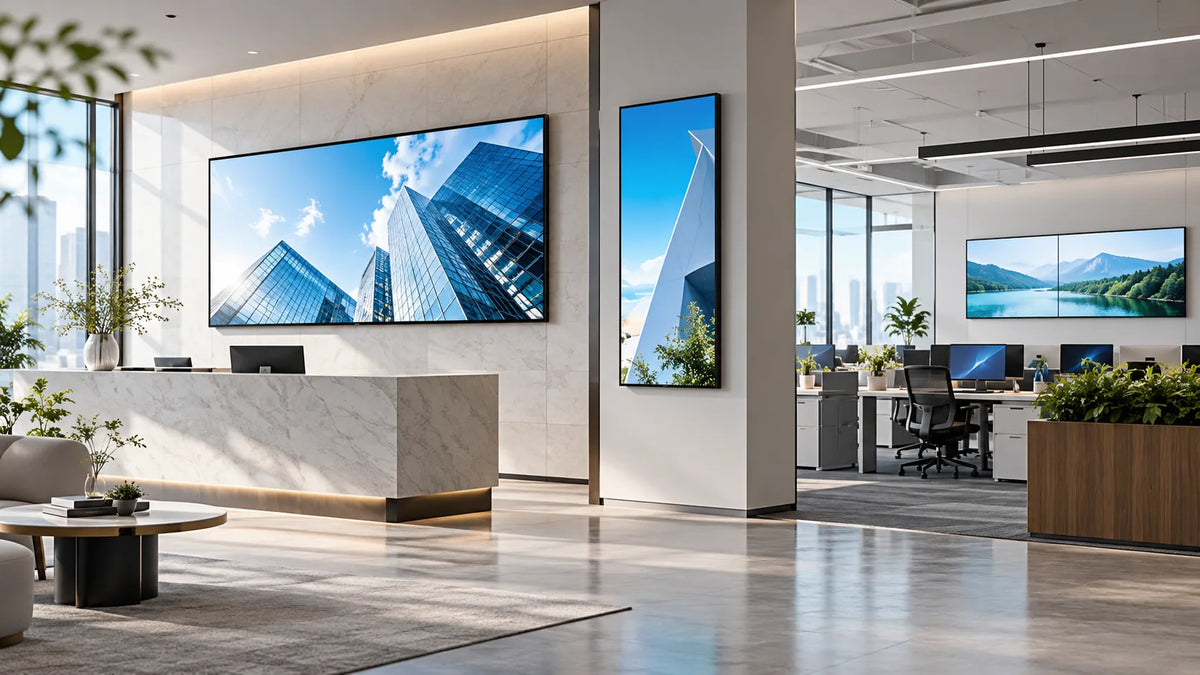
Cover illustration: a conceptual scene, not a Gemdragon model or completed customer installation.
Corporate digital signage works best when each screen has a defined audience, information owner, and viewing task. Separate visitor-facing messages from employee information, then choose the display format, content workflow, and access controls for each location. Test the actual notice, dashboard, or directory from its viewing position. A live screen is not proof that the information is current, appropriate for everyone nearby, or understood by employees.
Start with an audience map
Mark where visitors, contractors, employees, and service staff can see each screen. A lobby display may be visible through glazing or from outside the reception area. A break-room screen may also be visible during tours. Decide what belongs on the screen before connecting an internal dashboard.
Write the task for each position. Reception might need a welcome and directions. A staff area might need an operational notice and an action. A circulation point might need an event or room destination. Combining all of those into a dense rotating noticeboard can make the essential message difficult to find.
Use our digital wayfinding guide where the main problem is directions. This article focuses on corporate communication and information boundaries rather than rebuilding a map or room-booking system.

Build a screen and information matrix
| Location | Intended audience | Information rule to agree |
|---|---|---|
| Reception | Visitors and employees | Approved public messages; no confidential operational data |
| Staff break area | Employees, with actual access checked | Named content owner, relevant local notices, expiry |
| Corridor | People passing through | A short message readable within the viewing context |
| Operations area | Authorized staff | Approved dashboard fields and data-access method |
| Meeting-area entrance | Expected visitors and staff | Correct event or room information without unnecessary personal details |
Record an owner for the rule and someone who can correct an error. “Internal screen” is not a sufficient access classification when the physical viewing area includes other people.
Design for a glance, then check understanding
Use a headline that states what changed or what the reader should do. Keep the action and expiry visible where relevant. Move detailed documents to an accessible destination rather than reducing them to tiny text on a wall screen.
Prepare a representative notice and inspect it from the actual path. Compare portrait and landscape where the content shape is uncertain. Use the orientation guide and the size and viewing-distance guide for that exercise.
For a hypothetical office move notice, show the new location, effective date, and where to find help. Test whether employees can identify those items after viewing the screen. This is a proposed comprehension check, not a claim of measured employee engagement.

Separate a dashboard from the account behind it
If displaying operational data, ask the data owner to approve the fields and intended viewers. Use a presentation and access arrangement appropriate for the screen. Do not put an administrator's account into an unattended browser simply because the dashboard opens there.
Confirm how the selected application authenticates, refreshes, expires, and recovers. Check whether login prompts, error messages, or sensitive details appear when the connection changes. Record who revokes or updates access and who maintains the data presentation.
Yodeck's office-signage page groups employee updates and dashboard uses within its own offering. Its described software functions are not evidence of a Gemdragon integration. Validate the actual software and hardware using the CMS compatibility guide.
Give publishing and expiry named owners
Specify who creates, approves, publishes, and removes each content category. A central communications team may own company-wide notices while a site coordinator owns local facilities messages. Document the boundary and what happens when instructions conflict.
Use an expiry or review trigger for temporary notices. A stale message about a closed room or an old event can remain misleading even while the player is technically healthy. Where live data is used, define what should replace it when it is no longer current enough for the task.
The multi-location control guide addresses central and local permissions. The network handoff checklist helps coordinate the installed player with IT.

Pilot the complete operating workflow
Include communications, IT, facilities, and a representative site operator in acceptance:
- Verify the screen's physical audience and the approved information scope.
- Publish a notice, correct it, and remove it using the intended permissions.
- Confirm readability of the actual layout from the normal viewing positions.
- Test schedule, local time, and expiry behavior.
- Exercise approved network or data-source interruptions and inspect the fallback.
- Restart and confirm the display resumes without exposing an account or unintended interface.
- Record the service access, device inventory, account owner, and correction route.
Treat general corporate information separately from a regulated or safety-critical alerting system. If emergency communication is in scope, have the responsible specialist define its requirements and permitted role. This article does not qualify ordinary signage as a life-safety system.
Measure useful communication, not only screen activity
Keep technical delivery and human understanding separate. Publishing logs can show that a program was distributed under the provider's definition. They do not prove that every employee read it or acted on it.
For a pilot, record content accuracy, expired-notice removal, successful operator tasks, and a defined comprehension check. If measuring visits or requests through a displayed link, keep those separate from broader employee outcomes. Use an agreed baseline and period before claiming improvement.
Frequently asked questions
Should every office screen show the same playlist?
Only where the audiences and tasks justify it. Use the audience map to separate public information, local notices, and restricted operational data.
Does a high-resolution screen make a dashboard readable?
Test the actual layout and viewing position. More pixels do not make physically small labels easier to read from across a room. The 1080p vs 4K guide covers that distinction.
Can I show an internal dashboard on a reception screen?
First classify the data and the actual viewing audience. Use only approved fields and an approved access arrangement for that location; a reception area may be visible to visitors, cameras, or people outside the intended team.
Who should control office signage updates?
Name the content owner, approver, publisher, and expiry owner for each message type. Give accounts only the access needed for their assigned screens and use the organization's normal access review process.
What should an office signage pilot measure?
Check whether people understand the intended message, whether information remains current, and whether staff can publish, withdraw, and recover content correctly. Define any survey or action metric before comparing results.
Prepare a corporate display brief
Send Gemdragon the screen locations, intended audiences, content examples, viewing conditions, quantity, operating schedule, and proposed CMS or player. Request a display configuration and the information needed for IT and facilities acceptance. Start with wall-mounted displays, System Integrators, and Integration.
Discuss a corporate signage project
The scenarios are planning examples, not customer deployments or verified productivity results. Further procurement tools are available in Resources.