
Digital Signage Kiosk Mode: Test What Visitors Can Open Outside the App
A fullscreen player and a locked device look identical until someone tries to leave. This is the acceptance method: confirm which lock state was actually configured on Android or Windows, probe each public surface with evidence, and witness the service exit the site will need at 2 a.m.
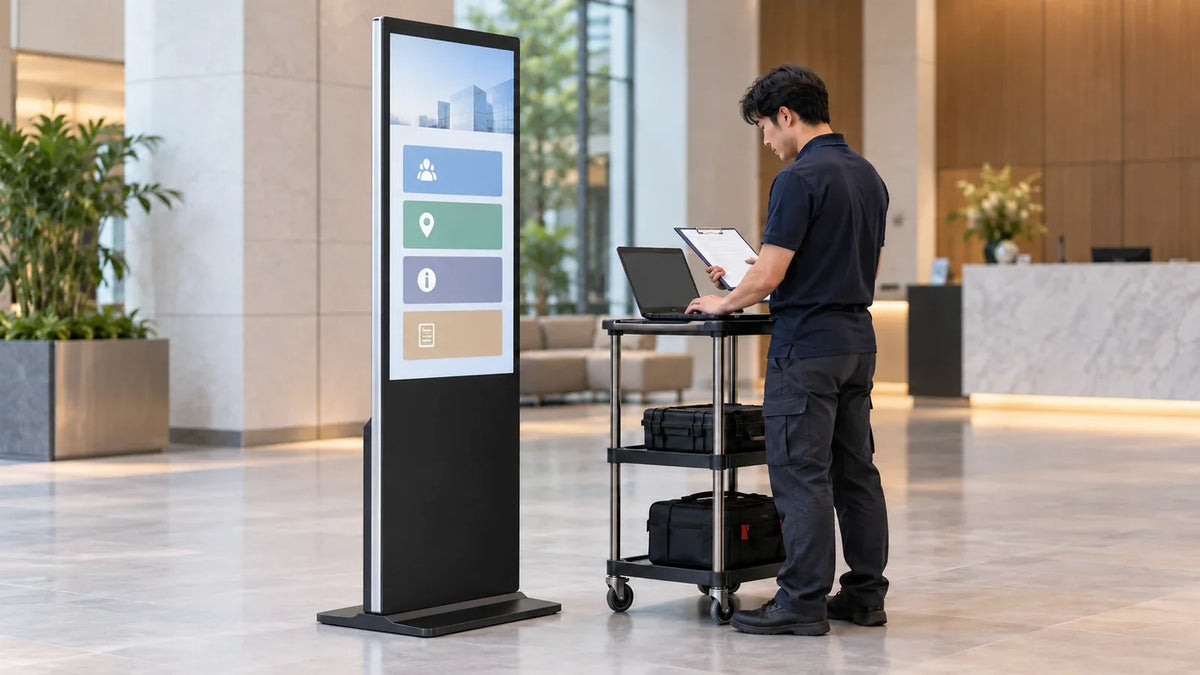
Cover: Concept illustration, not a customer installation or completed test. The directory interface does not demonstrate OS support or successful restriction.
A fullscreen player and a locked device look the same from across a lobby. They stop looking the same the moment a visitor presses the wrong thing. Before a public installation is accepted, prove which state you actually configured, at every surface a person can reach, and prove that your own staff can still get out.
A fullscreen image is one state
The player fills the screen. That is a rendering result, and it is the easiest part of the project to confirm: the image appears, it is the intended image, it loops.
Whether someone can leave that image is a different question, decided by the operating system and by how the device was provisioned. A browser pushed fullscreen and a device locked to one app are indistinguishable at a glance.
Android Enterprise's lock task documentation distinguishes a policy-controlled, allowlisted app environment from screen pinning, which a user can leave. Microsoft's Assigned Access guide describes a single-app kiosk experience and a separate restricted multi-app experience. These are platform mechanisms, not capabilities established merely by selecting an Android or Windows display option.
Confirm the restriction before testing it
Ask the integrator to identify the exact OS build and edition, application, account or policy, provisioning method, and supported restriction mechanism. Confirm the prerequisites against the documentation for that setup. Record who can administer the device and how authorized staff leave and restore its public session.
Do not copy a policy intended for a different OS release or application. A successful demonstration on another computer does not establish support on the quoted board and firmware. Keep a configuration-specific test open until the actual device is available.
Use a console session for the witness test where the chosen platform requires it. A remote view can be useful for administration while failing to reproduce what the visitor sees. Ask the responsible engineer to explain that boundary before treating a remote demonstration as acceptance.

Test the public surfaces
"Locked" is not testable as an abstraction. Surfaces are. The matrix below is an acceptance record to run on your own device, with the owner's authorization, before handover. It is not a penetration test, it does not extend to systems you do not operate, and no row is meant to teach a technique for someone else's equipment.
Scroll horizontally if needed to compare all columns.
| Surface | Authorized check on your own test device | Required decision | Evidence |
|---|---|---|---|
| Navigation and task switching | Try the normal controls available to a visitor | Which apps or system screens, if any, may open? | Result and deployed policy reference |
| Notifications | Trigger an approved test notification through the configured test environment | Is an overlay permitted, suppressed, or an unresolved exception? | Event and observed state |
| Links and external handlers | Use the app's intended links, documents, and downloads | Must the destination stay inside the allowed environment? | Tested destination and handler |
| Text input | Open the keyboard and relevant form states | Can the required task finish without exposing an unintended route? | App state and observation |
| Browser and system dialogs | Review available browser controls and expected prompts | What is restricted, and what requires staff handling? | Prompt/control and disposition |
| Approved peripherals | Check only peripherals and ports included in the authorized test plan | Which access is physically and logically permitted? | Port/peripheral configuration |
| Authorized service exit | The designated operator follows the approved exit procedure | Does it reach the intended service state? | Witnessed result; no credentials in the report |
| Return to public use | Restore the public session and repeat relevant access checks | Is the accepted restriction active again? | Return state and repeated checks |
A row that says "no one tried it" is an open item, not a pass. That distinction is the whole value of the exercise: an installation with four untested rows is not accepted, it is unexamined.
Three notes on reading the matrix. First, the accepted state is a business decision, not a universal one. A hotel lobby may accept a keyboard on a service port because staff use it. A bank branch may not. Second, the evidence column is what turns a walkthrough into a record; a photograph with a timestamp beats a recollection. Third, re-run the whole matrix after any change to the app, the operating system or the player platform, because the lock is produced by all three together.
Keep the service route usable
A lock with no authorized exit becomes an outage. A lock with an undocumented exit becomes a hole. Both are avoidable if the service route is designed at the same time as the restriction and tested by the person who will use it.
Run it in this order.
- Name the authorized operator and procedure. Keep credentials in the client's approved credential system, not in the test report.
- Witness the exit. The person expected to support the site follows the procedure on the deployed setup.
- Record the resulting state. Confirm whether the operator reaches a sign-in screen, an approved service application, or another explicitly permitted state.
- Restore public use. Record how return is triggered and whether staff action is required. Do not borrow a timeout from another platform or kiosk mode.
- Prove the restriction is back. Repeat the relevant visitor-surface checks and close any exceptions.
- Retain ownership. Record who administers the procedure and when it must be rechecked.

This test is about reaching and leaving the restricted session. It is not the visitor-state test. Clearing what the previous person typed, searched or left on the screen is a separate acceptance item, covered in Touch Screen Kiosk Software: Test the Next Session. Passing one does not demonstrate the other, and conflating them is how both get skipped.
Record and recheck the accepted setup

The setup that passes acceptance is a configuration with a date on it, not a permanent property of the hardware. Keep one page per installed unit:
- device identity and location, plus the operating system build and app version tested;
- which restriction was configured, on which account or package list;
- the exit route, the credential holder and the evidence references;
- the rows of the matrix that were accepted as exceptions, each with an owner;
- the date, the tester and the witness.
Then recheck on a trigger, not on a calendar alone. The triggers worth naming are an app update, an operating system update, a change of player platform or board, new content that needs an external link or an embedded video, a new peripheral at the site, and a change of site staff. Any of those can invalidate an earlier result, because the result described an earlier configuration.
The player environment deserves its own note. The platform on the Gemdragon Ultra-Thin Floor-Standing Digital Signage is a project choice. The current option menu lists Android, Windows, stand-alone and dual-system arrangements; the menu does not establish the installed configuration. Confirm the exact board, operating system, and app for the project. A family-level product page is not evidence of a preconfigured restricted session. If a project takes the dual-system option, ask how a user moves between the two environments and put that crossing at the top of the matrix. Test that transition explicitly rather than assuming that the restriction covers both environments.
No unit should be assumed to arrive pre-restricted. What a configuration does under lock is a question for the exact board, operating system and app in the quote.
What this article does not settle
It does not certify an installation as secure, and it is not a substitute for a security review of the app, the network or the management platform. It does not cover the visitor-state question (what the last person left behind), the management-plane question (who can reach device controls and from which network), or content governance. Those are separate records.
It also does not carry operating-system specifics beyond the documented mechanisms cited above, and it assumes the tester has authority over the device being tested.
This article assumes the unit is already chosen. Where it is not, the deployment logistics, sample review and service ownership around it belong to the Floor-Standing Digital Signage Buying Guide for Commercial Projects, and the question here comes after that one is settled: what does the device do in public?
If you are choosing the player environment and want the enclosure and board configuration discussed together with the lockdown plan, send the app, the intended exit route and the site's rules for staff access.