Digital signage for museums: hand over exhibit media
Choosing museum display screens? Connect each output to approved exhibit media, captions and reset behavior. Includes a handover record and opening check.
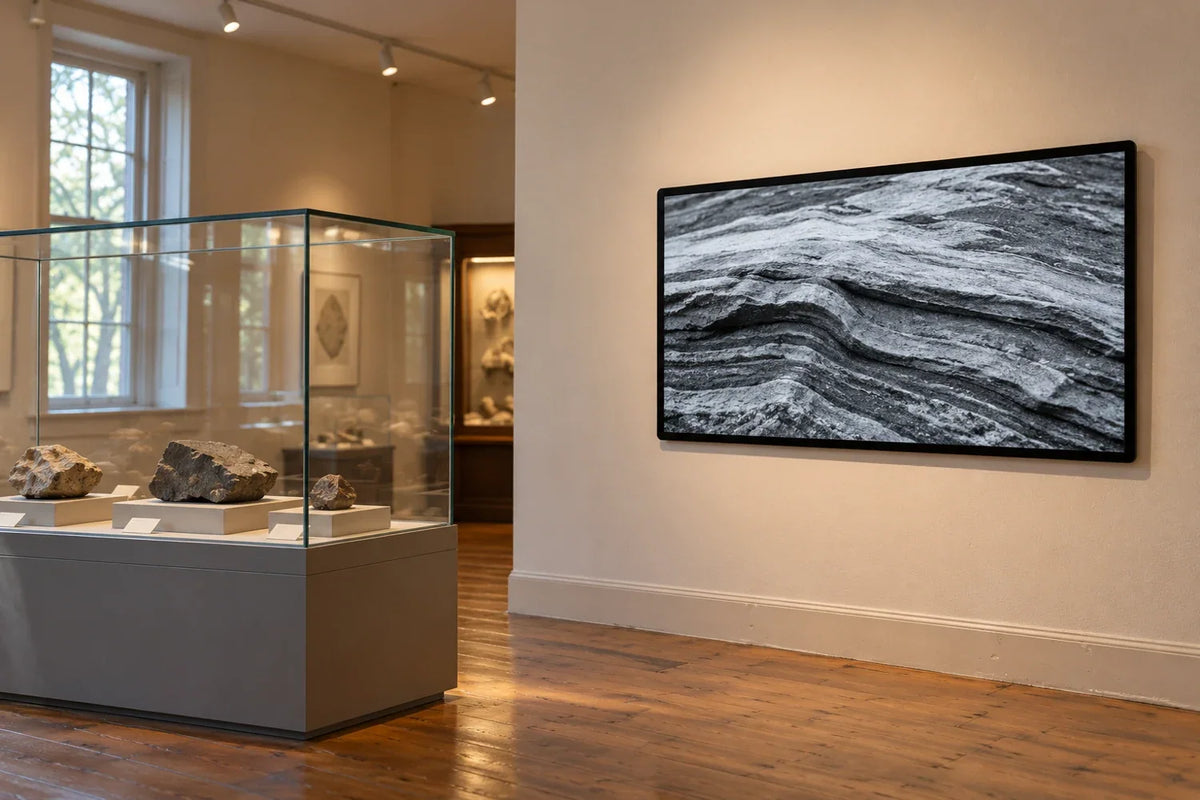
Plan digital signage for museums around the exhibit, then choose the display and player. Give each screen an exhibit ID, approved media version and language list. Record captions, usage permissions and start or reset behavior. Before opening, the curator, media team and installer should agree on what belongs on each screen. They also need to know how a visitor session ends.
Which kind of museum screen are you planning?
Museum display screens serve different jobs. A lobby screen may show opening information. A passive exhibit film needs the right media version and sound setup. Interactive exhibits also need a clear start state and a reset plan for the next visitor.
BrightSign's published Atacama museum case describes that supplier's multimedia installation. It shows why several content and AV components may need a shared handover record. It is not a Gemdragon case study. Build your record around your own exhibits and outputs.

For building navigation, use the separate digital wayfinding planning guide. This checklist focuses on interpretive media after the visitor reaches the exhibit.
What belongs in an exhibit media handover?
Use one row per exhibit output, not one row per generic file type. An exhibit with two different screens needs two identifiable outputs, even if both devices have the same exterior.
| Record field | What the team hands over | What the opening team can verify |
|---|---|---|
| Exhibit and output ID | Gallery, exhibit identifier and physical screen label | Correct media at the actual exhibit |
| Approved media build | File/package identifier, revision and curator approval | Correct opening frame and title/version |
| Languages and captions | Required language tracks, translations and caption files | Correct selection, matching text and usable presentation |
| Usage permission | Record owner, permitted venue, media, use period and required credit | Approved credit and no overdue asset in the playlist |
| Session behavior | Start state, visitor input, exit and reset expectation | Next visitor receives the intended starting experience |
| Opening check | Named responsibility and exception route | Issue logged against the exhibit, not just “screen offline” |
Have the museum's rights owner confirm usage permissions and required credits. A file being available to view or download does not settle exhibit rights. Record the approved use before handing media to the installer.
How do you test language and captions as one version?
Keep the source film, translation and captions tied to the same approved revision. A corrected narration can make an older subtitle file inaccurate even when both files play successfully.
Choose sample passages with names, dates and language-specific characters. Read them on the actual display from the visitor position. Check line breaks, contrast and placement. Captions should remain readable without hiding the relevant object or illustration. For each language option, check that the label opens the right content. Then check the starting language for the next session.

This is a proposed content and presentation check, not a declaration of accessibility compliance. Include the museum's accessibility specialist and its applicable requirements when setting acceptance criteria. Do not treat “captions included” as proof that the complete experience is accessible.
How should interactive exhibits reset between visitors?
Write a short sequence for each interactive exhibit: attract screen, visitor start, active content, exit and return. Decide whether the next visitor chooses a language or sees a default. Record how unfinished input and visitor-entered data will be cleared. Have the museum team approve that behavior.
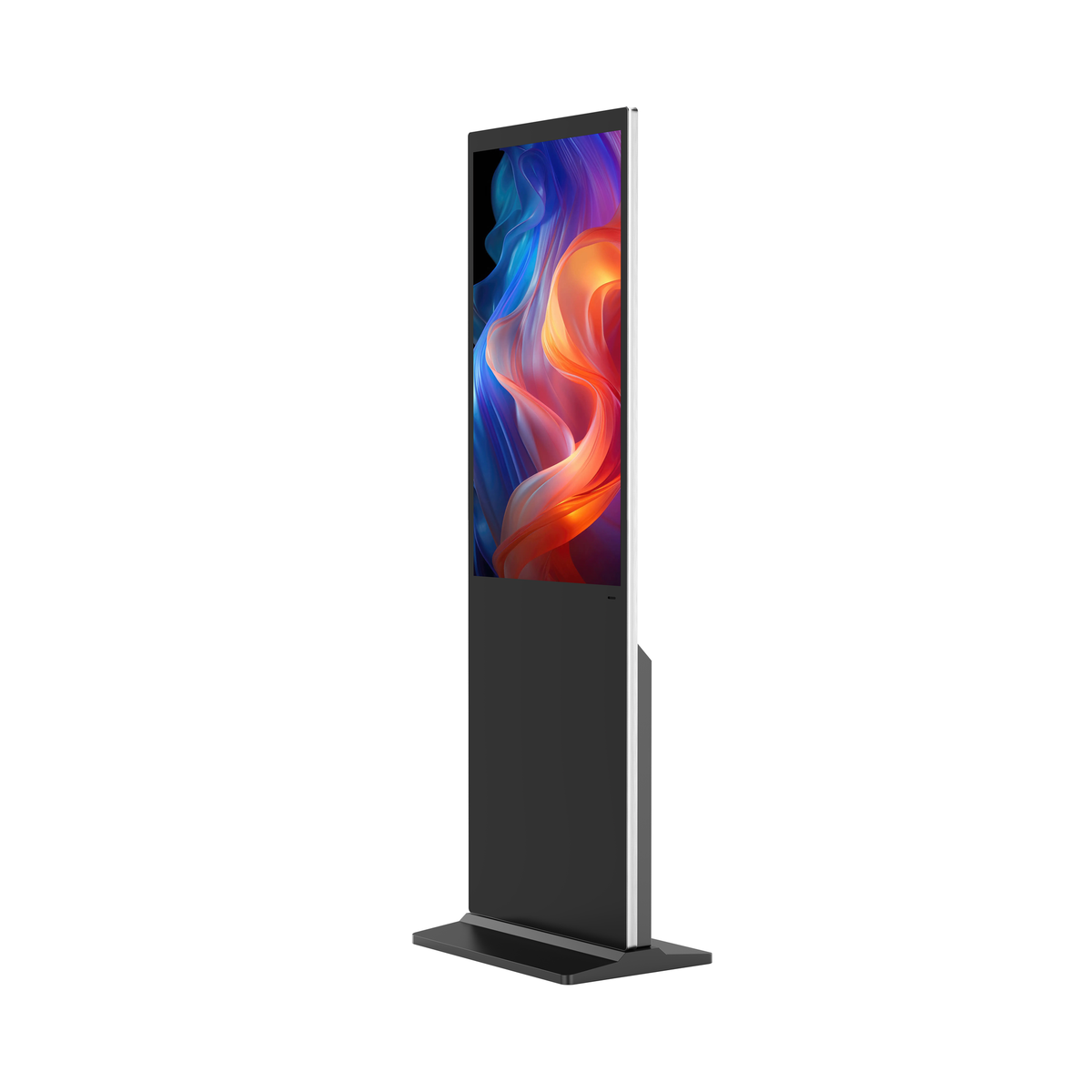
A passive film needs its own answer: does it loop continuously, begin on a visitor trigger or start at scheduled times? These are content-system decisions. A touchscreen-looking device in a photograph does not establish that a particular display has the required input capability.
Test the transition with an approved sample setup. Walk away at a meaningful point in the experience, then approach as the next visitor. Record what appears and compare it with the agreed start state. Do not fill in a reset time or response rate until the team has specified and measured it.
What should the opening team actually inspect?
At opening, match the physical exhibit label to the handover record. Watch the opening media and check the required language and caption path. For exhibits with audio, ask the AV team to check the sound destination. A playing video alone does not confirm that the audio works.
Log an issue against exhibit ID, output ID, media revision and the step that failed. Separate “wrong language file,” “session did not return” and “display has no signal.” This gives the curator, content developer and installer a useful starting point. The black-screen troubleshooting guide addresses the separate signal-path investigation.

How do you specify the physical display?
Send the installer a gallery plan, viewing positions, lighting, screen orientation, mounting constraints and service access. Identify passive and interactive outputs separately, along with the intended player and content package. For package behavior, use the HTML5 acceptance checklist rather than relying on a desktop preview.
The display is one component in an interpretive system. Decide who will service the player, restore the approved media build and sign off the exhibit after a replacement. Keep these tasks connected to the exhibit record so a hardware swap does not silently introduce a different visitor experience.
Frequently asked questions
Does a picture of a touchscreen prove interactive suitability?
No. Confirm the exact input hardware, player, application and installation, then test the intended interaction. Do not infer touch capability from a scene illustration.
Who approves artwork and film permissions?
The museum's designated rights owner should resolve permissions and required credits. Carry that decision into the media record; do not ask an installer to infer it from a file's availability.
Is this an accessibility certification checklist?
No. It is a procurement handover method. The museum and its specialists must define and evaluate applicable accessibility requirements for the complete experience.
Discuss screens for your exhibit plan
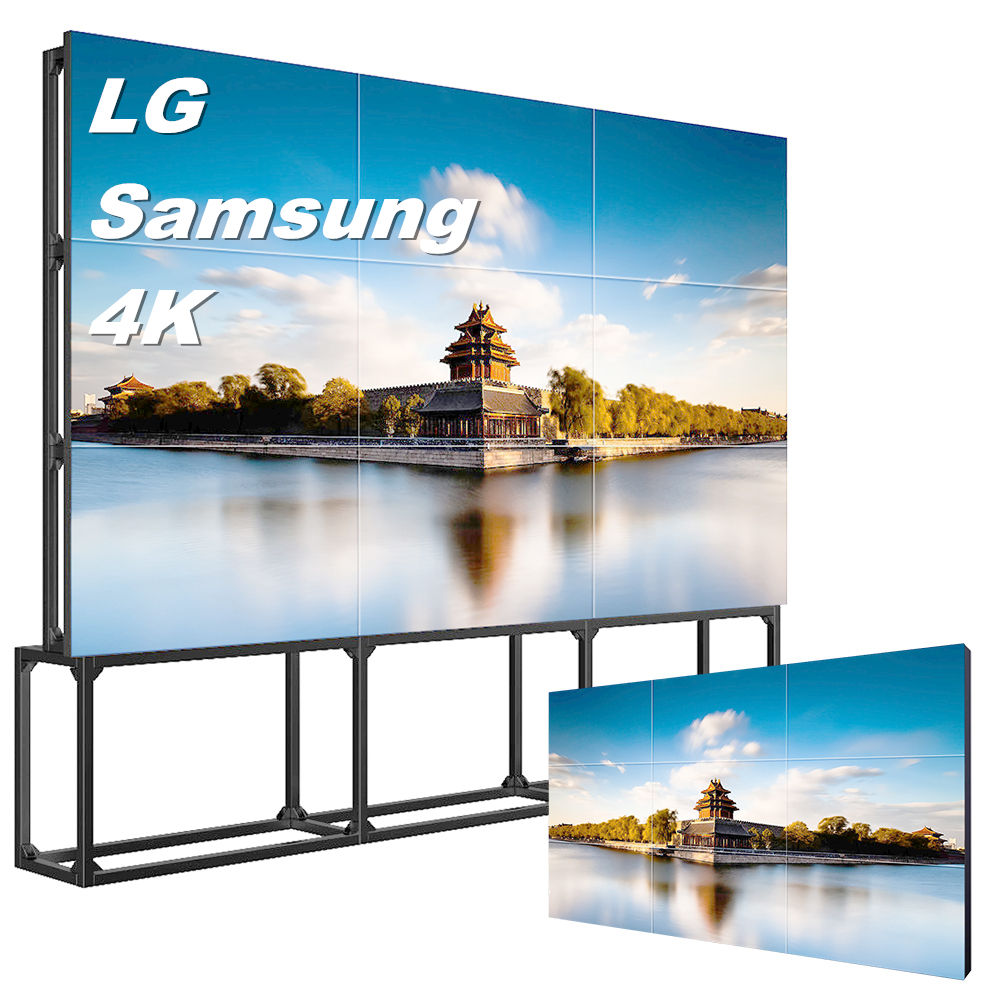
Start with the screen count, gallery or placement, destination country and orientation. Tell Gemdragon which outputs show films and which need interaction. Add your player plan if known. The wall-mounted display catalog reference supports a format discussion; confirm the exact configuration and suitability for the exhibit.
Discuss your museum display plan. A redacted exhibit record is useful when available. You can start the hardware discussion with a gallery plan and intended screen roles.
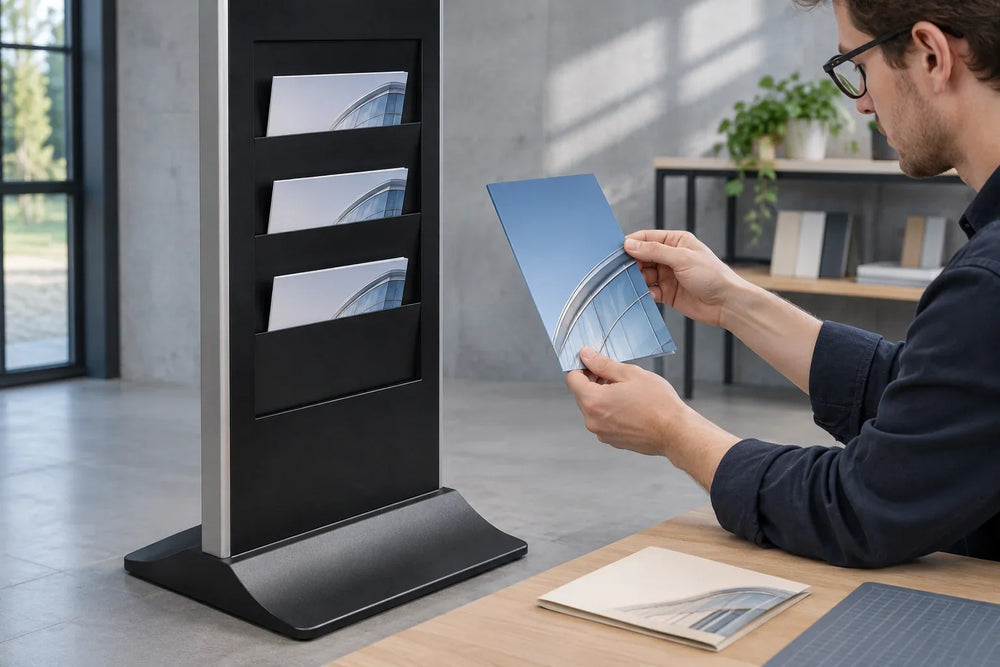
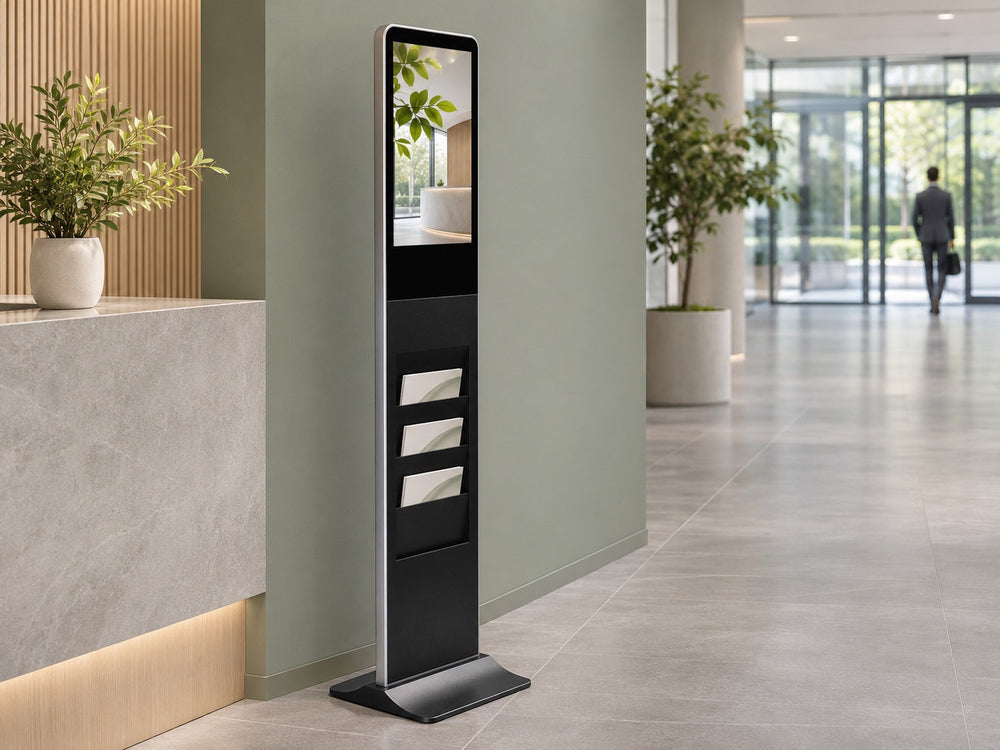
Editorial scope: an original exhibit handover method reviewed on October 20, 2026. Scenarios use fictional exhibit identifiers and original illustrative artwork. No actual museum installation or acceptance result is claimed. Cover: photo-style AI scene illustration, not an actual customer installation.