Android vs Windows digital signage: choose the player your team can operate
Choose a signage player by CMS support, media, peripherals, recovery and updates. Compare Android and Windows with an evidence-based RFQ matrix.

Choose Android or Windows digital signage by the exact content management system (CMS) player, content workload, peripherals, and maintenance process you need. The operating system (OS) name alone does not establish compatibility, playback performance, remote control, or update support. Shortlist configurations that your CMS provider supports, then test the unattended daily cycle: start, download, play, recover, update, and return to service. The better choice is the one that meets the project requirements with a support process your team can sustain.
What are you actually comparing?
Separate the display panel from the computer running the content. An Android system may be integrated into a display or supplied as an external player. A Windows computer may also be integrated or external. Those are two decisions: the operating environment and the physical service arrangement.
The embedded vs external player guide covers service access and replacement. This article covers the software and operational choice for unattended signage, rather than an interactive classroom board or a general-purpose office computer.
Start with the CMS player's current support list. Record the application version, Android version and board identity, or Windows edition and build, alongside the hardware configuration. “Works on Android” does not mean every Android board is supported. “Windows compatible” does not identify the required edition, graphics path, or peripheral driver.

When is Android a sensible shortlist?
Consider an Android configuration when the CMS provider explicitly supports the proposed device, the intended content works on its player, and the provisioning and update process fits your team. A purpose-configured player can suit a repeatable signage task without needing the desktop tools of a PC.
Confirm application installation, launch after boot, local media storage, browser or WebView behavior where relevant, and recovery after an application failure. Ask which controls come from the CMS app, the device firmware, and any separate management service. They are not interchangeable.
For connected fleets, ask for the security patch level and the party delivering device updates. The Android security bulletin overview distinguishes fixes from AOSP, the Linux kernel, and system-on-chip manufacturers. A current public bulletin does not prove that a particular signage device has received those fixes. Ask the device supplier for its actual update path and support scope.
Avoid deciding by a version number alone. An application can have requirements that a nominally newer device does not satisfy, while a managed deployment may need a specific validated build. Put that configuration into the purchase record.
When does Windows deserve preference?
Consider Windows when a required application, peripheral, driver, or existing management process calls for a supported Windows configuration. Name that requirement. A desktop application dependency is a stronger reason than a general statement that Windows is “more powerful.”
Also name the kiosk method. Microsoft's kiosk configuration overview distinguishes single-app Assigned Access for supported Universal Windows Platform (UWP) or Edge kiosk experiences from Shell Launcher for a desktop application shell. The available approach depends on the application and Windows edition. Do not assume that selecting Windows automatically removes the desktop, notifications, or sign-in interruptions.
Ask who supplies and maintains the operating-system license, image, drivers, security updates, and recovery procedure. Specify the exact edition and build rather than accepting “Windows included” as a complete software scope. Lifecycle dates must be checked for that edition; they should not be inferred from another Windows product with a similar name.
Which requirements belong in the supplier comparison?
Use a request for quotation (RFQ) matrix that both suppliers must answer with evidence. Leave a requirement marked unresolved when the proposed configuration has not been demonstrated; do not turn a missing answer into a feature checkmark.
| Decision row | Android candidate | Windows candidate | Evidence that settles it |
|---|---|---|---|
| CMS support | Exact app, OS, and board combination | Exact app, edition, build, and hardware | Current CMS support confirmation |
| Media workload | Intended files, layouts, and live content | The same content and layout | Playback on the proposed sample |
| Peripherals | Supported interface and device combination | Supported driver and device combination | Complete end-to-end task demonstration |
| Unattended startup | App launch and device restrictions | Kiosk or shell configuration | Cold-start and application-recovery record |
| Fleet maintenance | Device, firmware, and app update owners | OS, driver, app, and image owners | Documented rollout and rollback process |
| Replacement | Restore configuration to a replacement device | Restore image and configuration | Observed replacement procedure |
| Recurring cost | CMS, management, support, connectivity | CMS, management, support, connectivity | Itemized commercial scope |
Do not assign a universal winner to the cost row. Compare your actual quotes and staffing requirements. A lower player price can be offset by a service process that needs local visits; a familiar management platform can still carry licensing and setup work.

How should you test media and peripherals?
Bring the content that is hardest to run. Include the largest intended layout, the actual video encoding, portrait content if needed, the longest playlist, and the live source or webpage used in production. Test the content path through the chosen CMS player, not only in a browser or a separate media app.
Player features can be hardware-specific. For example, the Xibo Gapless Playback documentation limits its gapless-playback guidance to selected apps and supported hardware. The lesson for procurement is to confirm the exact app/device combination. This is not a claim of Xibo approval for a Gemdragon configuration.
For touch, scanners, printers, or other peripherals, test the entire user task, including cancellation and recovery. Record which component owns the driver or interface. A connector physically fitting is not proof of application support.

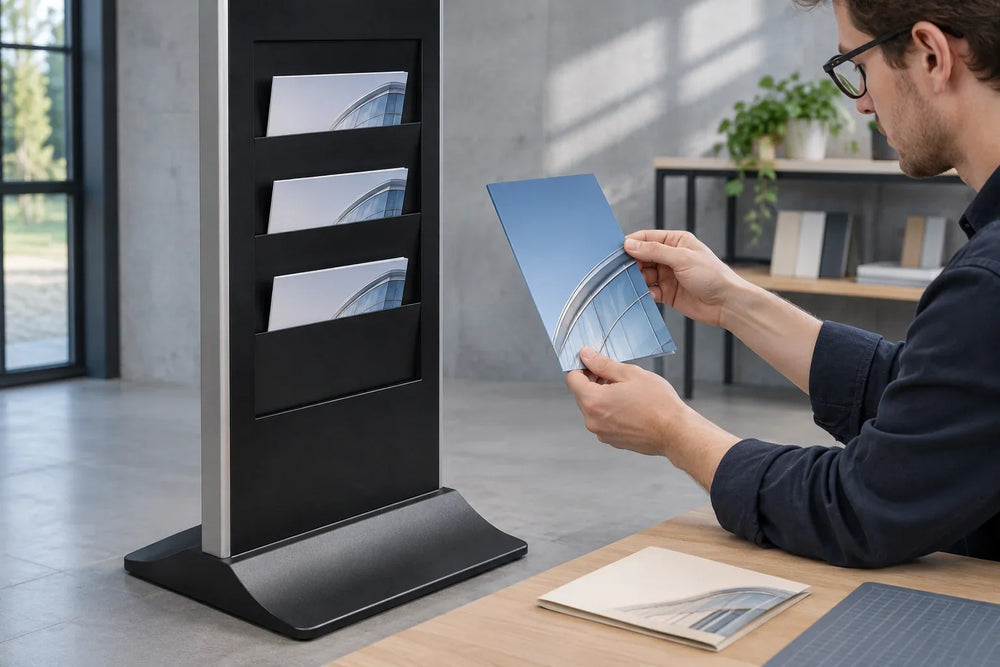
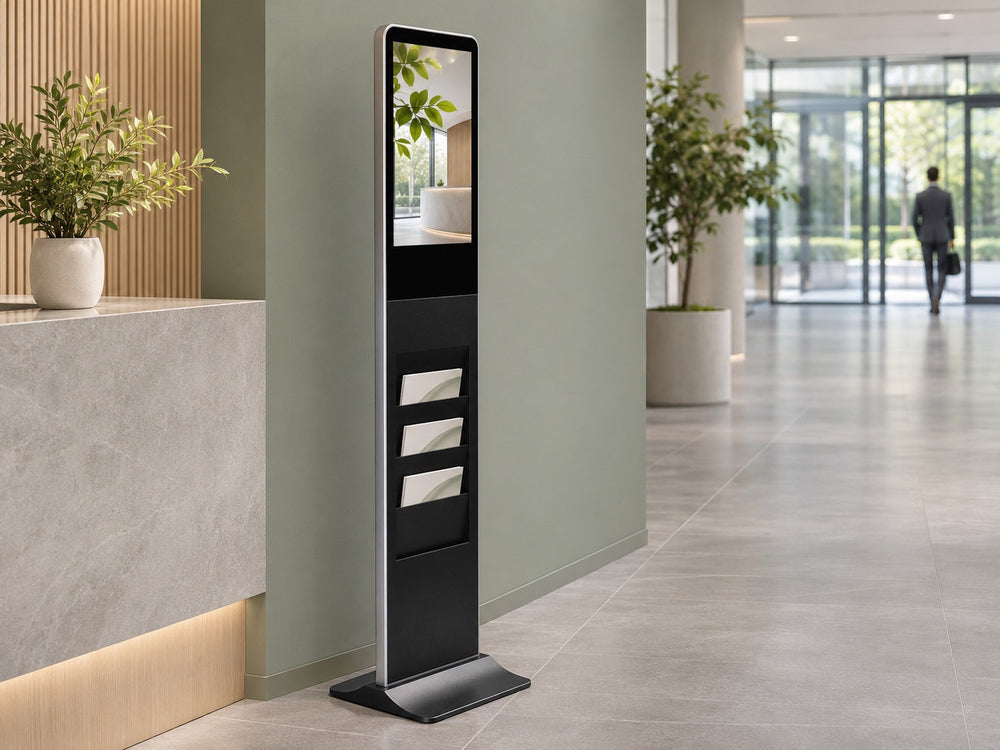
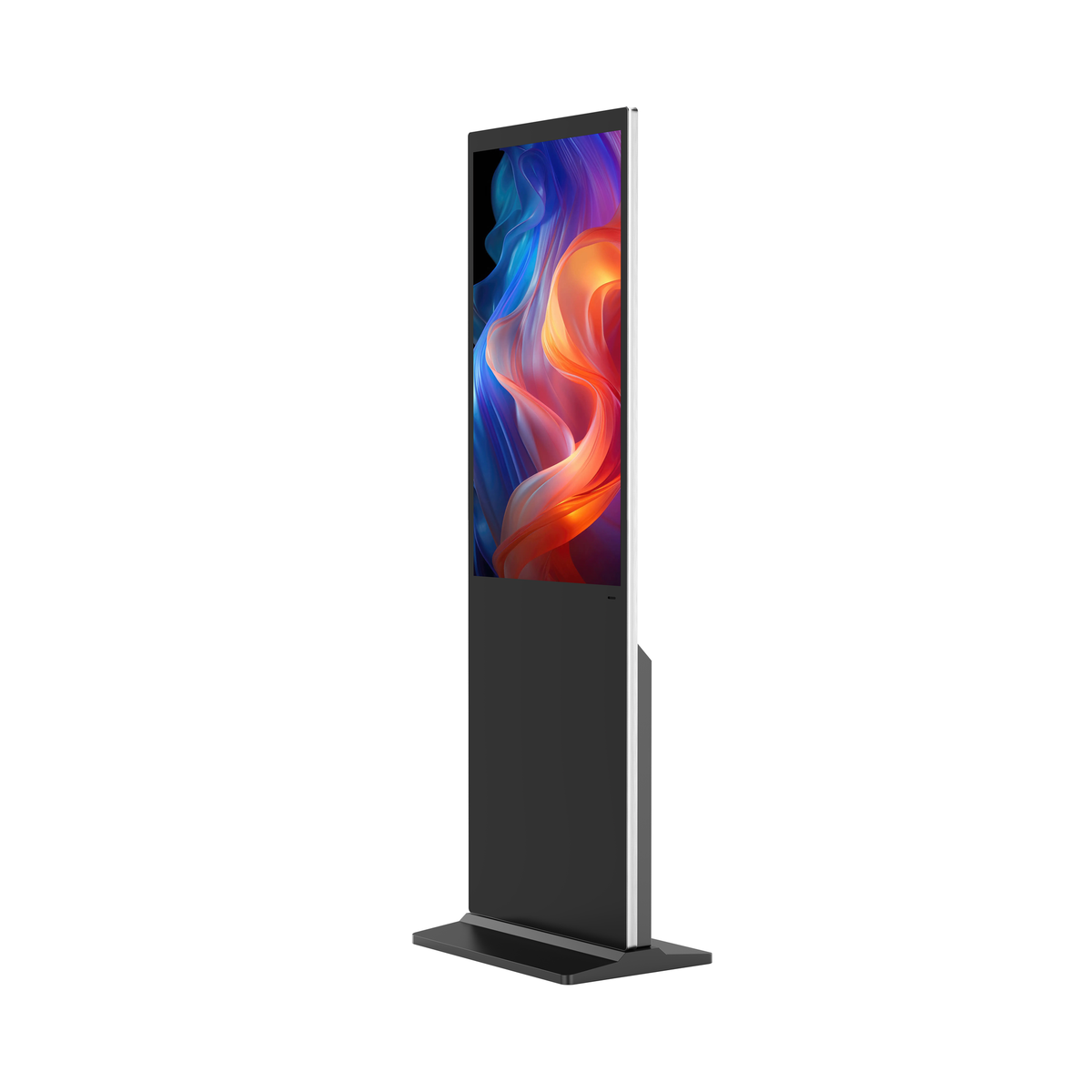
The display's exterior also does not establish its computing configuration. When discussing a Gemdragon floor-standing display, specify the proposed player and software stack separately from the cabinet, screen orientation, and mounting requirements.
What should the unattended trial include?
Run a representative daily cycle before accepting a fleet image. Use the same application versions, network policies, content, and display settings proposed for deployment. Keep the record with the unit configuration so future changes can be compared against it.
- Start the system from its normal powered-off state and verify the intended application and input appear.
- Interrupt the network, then restore it. Check local playback, live-content fallback, and update recovery separately.
- Restart the application through an authorized test procedure and verify it returns to the correct content.
- Apply a representative approved update to a pilot device; check playback and peripheral behavior afterward.
- Demonstrate the documented recovery or rollback path if the change fails.
- Provision a replacement player and verify credentials, location assignment, content, and licenses are restored correctly.
This is a proposed acceptance script, not evidence that either operating system or a Gemdragon model has passed it. Your project should set observable pass conditions and identify who can authorize software changes.
Before approving a web-based item, use the HTML5 content-package acceptance checklist to check dependencies, playlist lifecycle and a reproducible handoff.
Frequently asked questions
Is Android or Windows better for digital signage?
Neither is the default winner. Choose the supported configuration that runs the intended content and peripherals, recovers unattended, and has an update process your team can maintain.
Does Android signage always use a built-in player?
No. Android and Windows describe operating environments; integrated and external describe the physical arrangement. Compare both decisions explicitly.
Will the same CMS layout behave identically on both?
Do not assume so. Confirm feature support for the exact player versions, then test the actual layout, media, live sources, and interactions on both candidates.
Is Windows signage free of recurring software costs?
Check the quoted scope. OS licensing, CMS licensing, device management, support, and connectivity are separate items. An operating-system label does not settle those costs.
Send the software requirements with the display brief
Tell Gemdragon your CMS and player version, intended content, peripheral requirements, quantities, destination country, and daily operating schedule. Identify any mandatory Windows application or Android device requirement, and ask which exact configuration can be evaluated. Confirm compatibility through the responsible software and hardware providers before rollout.
Discuss your signage configuration
Browse more integration and procurement resources.
Editorial scope: Original selection and acceptance guidance, with narrowly attributed platform documentation. No universal compatibility, software license entitlement, update duration, or tested Gemdragon performance is asserted. Scene illustrations are conceptual, not records of laboratory testing. Cover: photo-style AI scene illustration, not an actual customer installation.