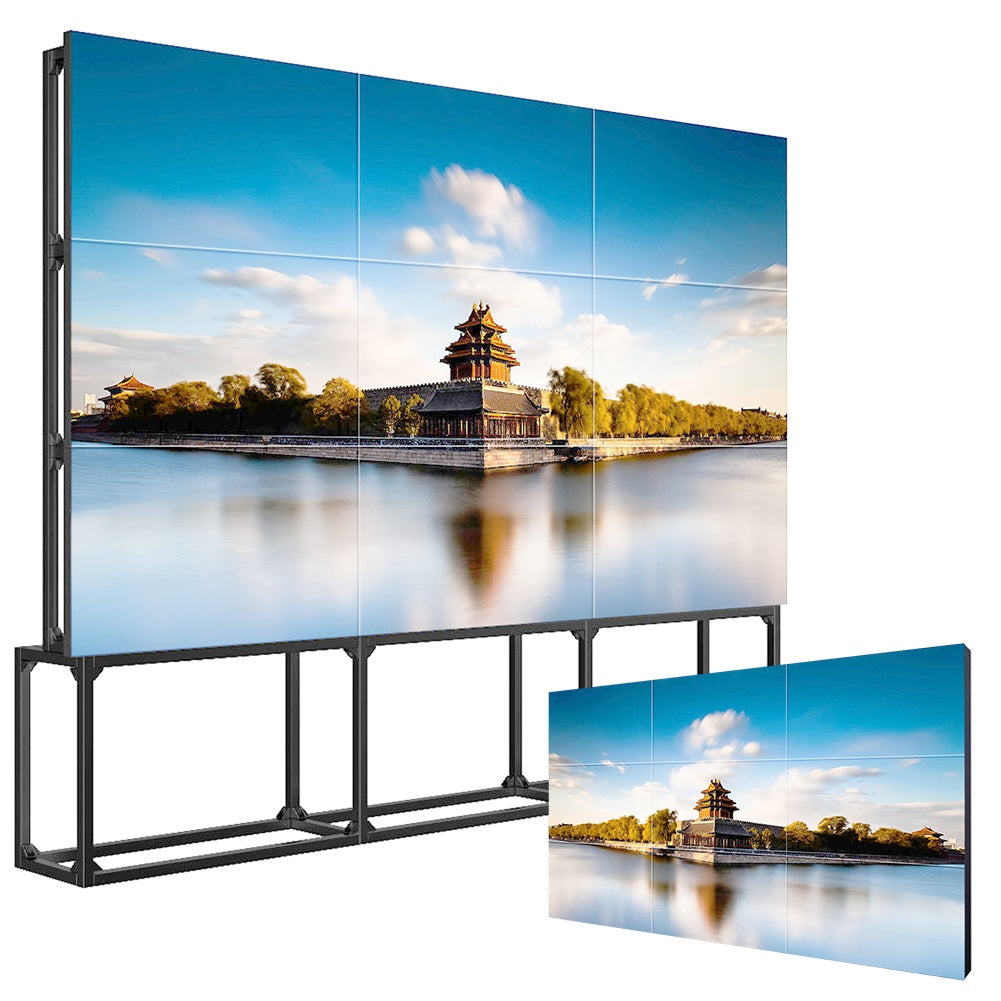

Key takeaways
- Design the stack around ownership and recovery, not a list of components.
- Compatibility means successful production workflows on exact versions.
- Separate device monitoring from CMS content status.
- A golden configuration, site checklist and rollback path make multi-site deployment repeatable.
Map the complete hardware and responsibility stack
Draw the system from content authoring to the pixels on screen. Include CMS tenant, application and operating system, media player or integrated SoC, display controller, panel, network, power, mount or enclosure, audio, touch, sensors and any local input. Name who selects, configures, supplies, installs, secures, monitors and supports each layer.
This map prevents “screen problem” from becoming the default label for every incident. A black display may originate in power, input selection, player boot, application authentication, network, scheduled content or the display itself. Ownership and observable status shorten diagnosis.
Choose integrated or external players by lifecycle needs
An integrated player can reduce boxes and cables, while an external player may provide a preferred operating system, performance level, certification path or easier independent replacement. Compare processing, storage, codecs, graphics output, ports, security controls, update method, watchdog behavior, remote access, replacement availability and expected software lifecycle.
Do not make the choice from processor names alone. Run the production application and media mix, including transitions, multiple zones, web content, peripherals and the intended display resolution. Record CPU, memory and storage behavior where useful and test after extended operation.
Define interfaces as controlled contracts
List required inputs, outputs, USB roles, serial control, network interfaces, Wi-Fi or cellular modules, antennas, audio, touch return path and peripheral power. Specify connector location and cable clearance as well as connector type. A correct port that becomes inaccessible after mounting is not a usable interface.
For control protocols, document commands, transport, addressing, authentication and failure behavior. Validate input switching, startup state, volume, brightness schedules and status reporting on the exact firmware. Keep a versioned interface record with the project documentation.
Prove CMS compatibility through real operating scenarios
Test enrollment, authentication, scheduling, production codecs, HTML or web content if used, local caching, time zones, screenshots, health reporting and software updates. Simulate network loss, corrupted or unavailable content, server interruption, power loss and unplanned reboot. Confirm what plays, what is reported and how recovery occurs.
A successful ten-minute demo is not enough for rollout. Run the intended content loop and schedule over a representative period, then repeat the critical tests after firmware, application, OS image or player changes.

Engineer mounting, cooling, power and cable service together
Mechanical drawings should show mounting pattern, orientation, weight, clearances, ventilation path, door or panel movement, cable exits and component-removal route. Coordinate wall structure, floor anchoring, power outlet, network termination and any recessed box. Confirm the technician can reach the player and controls without dismantling unrelated finishes.
Document permitted operating orientation and environmental limits. Measure site conditions where necessary. If a kiosk or enclosure adds heat, protective glass or restricted airflow, test the assembled system rather than relying on a display-only specification.
Build monitoring and remote recovery in layers
CMS status may confirm that an application checked in but not that the panel is powered, on the correct input or visibly displaying content. Decide whether the project needs player heartbeat, screenshots, display control status, power monitoring, temperature data or independent network checks. Map each signal to a support action.
Use safe automated recovery where appropriate: application restart, player reboot, scheduled power cycle or alert escalation. Define thresholds and limits so automation does not conceal a recurring fault. Keep remote access secure and auditable, with least privilege and a documented offboarding process.

Freeze, deploy and support a golden configuration
The golden configuration should identify hardware revisions, firmware, OS image, application, CMS settings, codecs, credentials process, cables, mount, accessories and accepted content tests. Use pilot sites to refine installation time, photos, labels and support scripts before scaling.
For every change, identify affected sites, regression tests and rollback. Store as-built records by serial number and location. A disciplined deployment package turns individual screens into a manageable installed base and gives the manufacturer, integrator and end customer a shared source of truth.
Integrator responsibility matrix
| Layer | Define before order | Verify before handover |
|---|---|---|
| Display | Size, light, orientation, control and duty | Image, input, settings and recovery |
| Player/CMS | Versions, media, enrollment and ownership | Schedule, cache, update and alerts |
| Network/security | Transport, identity, remote access and policy | Loss, reconnect, logging and offboarding |
| Physical system | Mount, power, cooling, cabling and access | As-built photos and service route |
| Operations | Monitoring, escalation, spares and change control | Runbook, baseline and rollback |
Practical tool
Golden-configuration record
- Display model and hardware revision
- Player/SoC, OS and firmware versions
- CMS application and tenant settings
- Production media and codec test set
- Ports, cables and peripheral list
- Mounting, power and network drawings
- Monitoring and failure-recovery behavior
- Serial/site record, change log and rollback
Frequently asked questions
What hardware is required for digital signage?
At minimum, a display, content source or player, network or media-delivery method, power and mounting are needed. CMS, sensors, touch, audio and monitoring depend on the use case.
Is an integrated Android player always simpler?
It can reduce components, but suitability depends on application support, security, updates, performance, recovery and lifecycle. Test the exact stack.
How do integrators verify CMS compatibility?
Run production workflows and content on exact hardware and software versions, including enrollment, scheduling, offline behavior, monitoring, updates and recovery.
What belongs in a golden configuration?
Hardware revisions, software versions, settings, interfaces, accessories, accepted content, test results and the process for changes and rollback.
Why can a CMS show online when the screen is blank?
The CMS may be reporting only the player or application. Panel power, input, cable, controller and visible output may require separate monitoring.
Sources and further reading
- Gemdragon digital signage collection
- NIST guidance on enterprise patch management planning
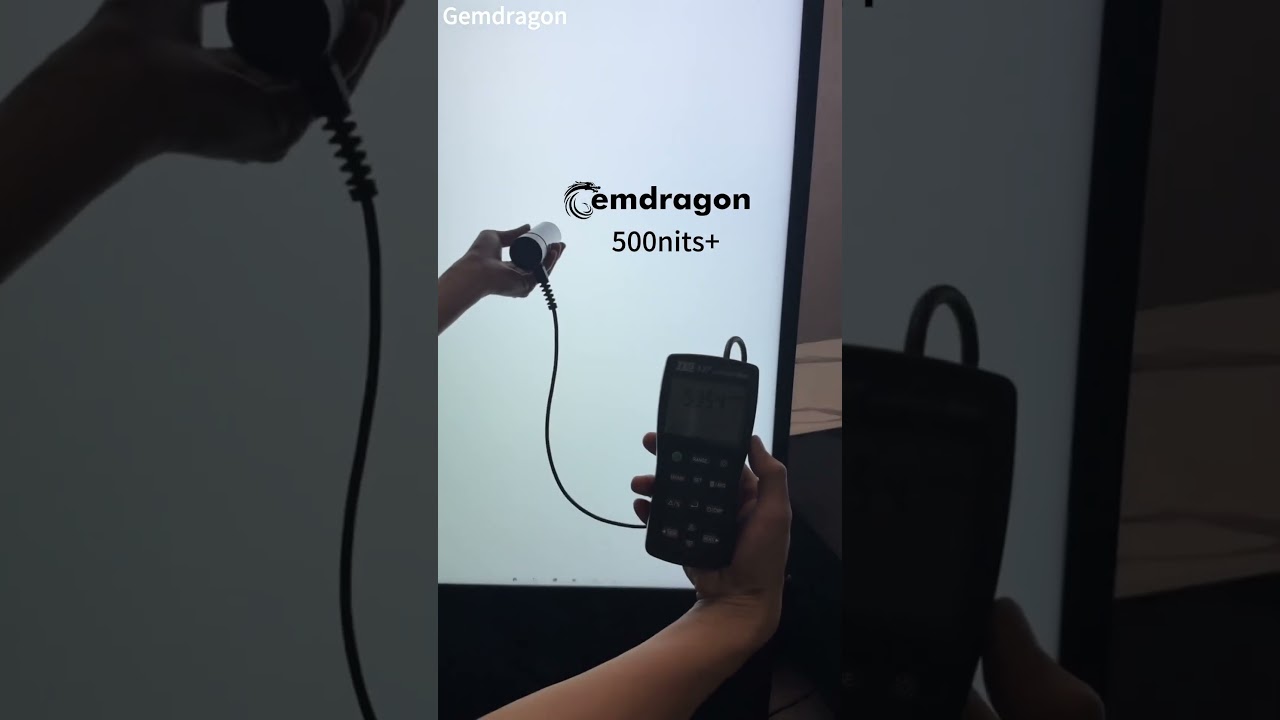
- Gemdragon commercial hardware comparison video
Continue your research: Start with the broader buying guide · Discuss CMS and hardware compatibility
Editorial note: Product configurations, applicable standards and site requirements vary. Confirm the exact model, destination and project scope before procurement.